How to Factory Reset a Samsung TV Without a Remote

By Trae Jacobs,

When you buy through our links, we may earn an affiliate commission.
Your Samsung TV remote is missing, and you cannot access your settings. You can bypass this issue by using a USB keyboard or the SmartThings mobile app.
- Plug a standard USB keyboard into your television’s USB port to navigate the menu [0:29].
- Press the Windows or Command key and the Escape key simultaneously to open your settings window [0:34].
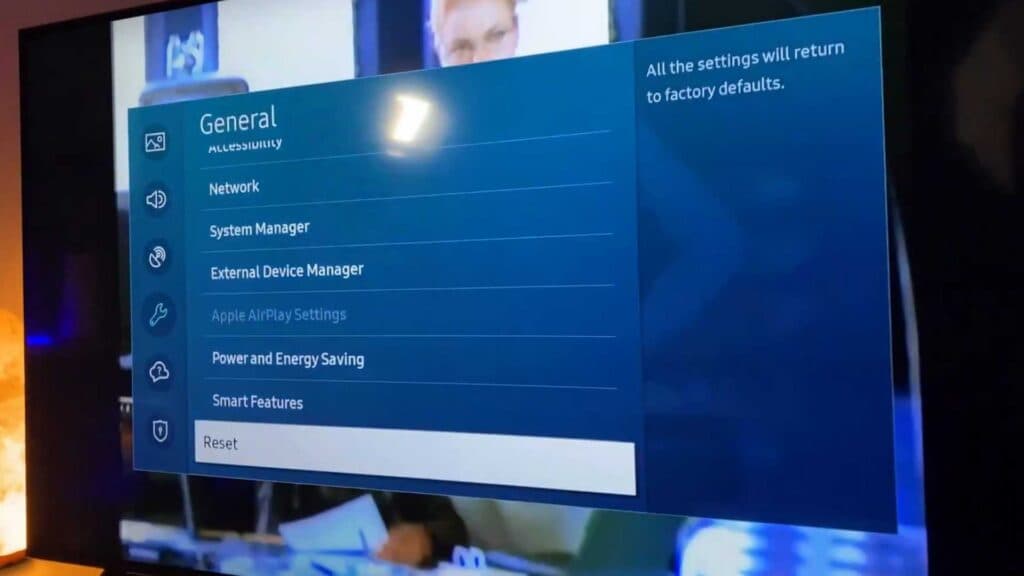
- Scroll down to the General section and select the Reset option [0:58].
- Enter your PIN, or use the default code 0000 if you have never changed it [1:15].
- Download the Samsung SmartThings app on your smartphone and sign in to your account [1:25].
- Tap to add a device in the app and select your television from the list of nearby scanned hardware [1:33].
- Type the PIN displayed on your TV screen into the app to complete the connection [2:20].
- Open the virtual remote inside the app to control your TV and adjust your settings.
Ninja Tip: If the keyboard or app fails to connect, try unplugging the TV from the wall outlet for sixty seconds to clear the temporary cache and reset the network adapter.
To perform a factory reset, navigate to Settings > General > Reset.
Keep Reading



