How to Enable Split Screen View on Apple CarPlay

By Trae Jacobs,

When you buy through our links, we may earn an affiliate commission.
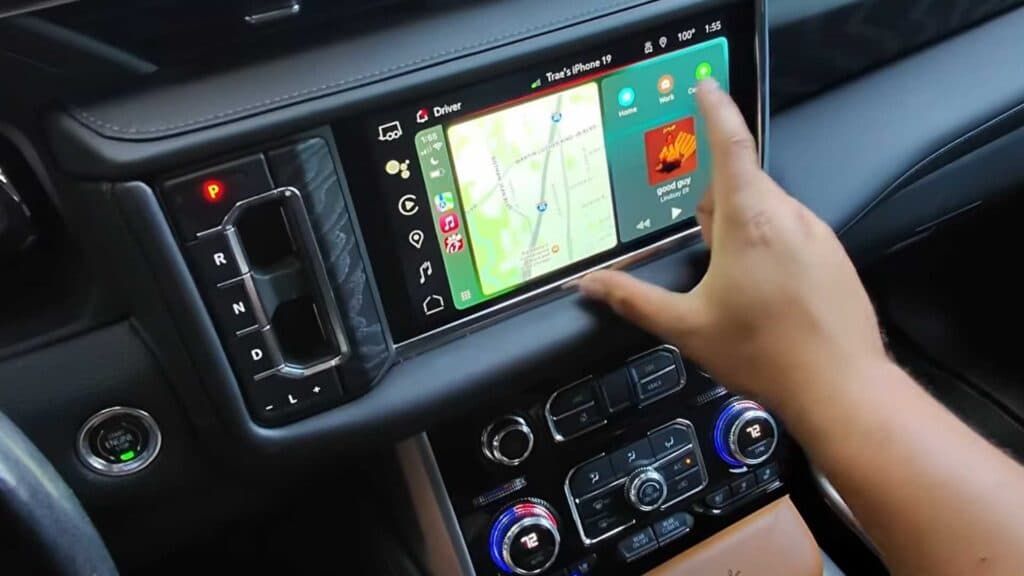
Your Apple CarPlay dashboard only shows one app at a time. You can change this to show your map, music, and other information all at once.
- Locate the square icon at the bottom of your screen to switch views. [0:21]
- Tap the icon to reveal the split screen layout, which displays your navigation, map controls, and music player in three distinct areas. [0:24]
- Use your preferred map app, such as Apple Maps, Google Maps, or Waze, and the system will automatically display the map and its respective controls in the split view. [0:51]
- Ensure your music app is currently playing audio so that it appears in the third panel of the dashboard.
- Scroll across the screen or tap the square icon at the bottom to toggle between the full-screen and split-screen layouts.
Ninja Tip: You can quickly switch between your active apps by tapping the app icon on the side rail of the dashboard, which often refreshes the split view panels if they appear stuck or inactive.
If the dashboard continues to display incorrectly, perform a reset by going to Settings > General > CarPlay > Forget This Car, then reconnect your iPhone.
Keep Reading



