How to Enable HDMI-CEC (SIMPLINK) on Your LG TV

By Trae Jacobs,

When you buy through our links, we may earn an affiliate commission.
Your LG TV remote currently fails to control your connected external devices. You can resolve this by enabling the built-in HDMI-CEC features.
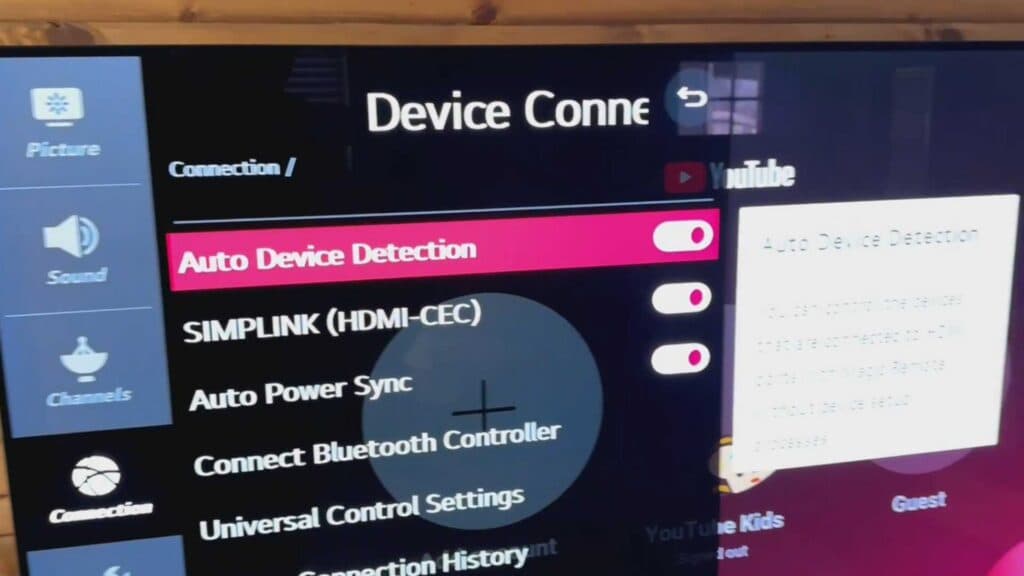
- Press the Settings button on your remote control and select All Settings [0:18].
- Navigate to the Connection menu [0:26].
- Select Device Connection Settings to view your available HDMI options [0:30].
- Enable SIMPLINK (HDMI-CEC), Auto Power Sync, and Auto Device Detection to ensure your TV and external devices communicate properly [0:42].
Ninja Tip: If your devices still aren’t syncing, try unplugging both the TV and the external device from the wall outlet for 60 seconds to force a fresh handshake. If the connection remains unstable, ensure you are using a high-speed HDMI cable that supports CEC data transfer.
If the issue persists, you may need to perform a factory reset by navigating to Settings > Support > Reset to Initial Settings.
Keep Reading


