How to Enable and Use Magnifier on iPhone

By Trae Jacobs,

When you buy through our links, we may earn an affiliate commission.
Small text and objects are difficult to see on your iPhone screen. You can use the built-in Magnifier app to get a clearer view.
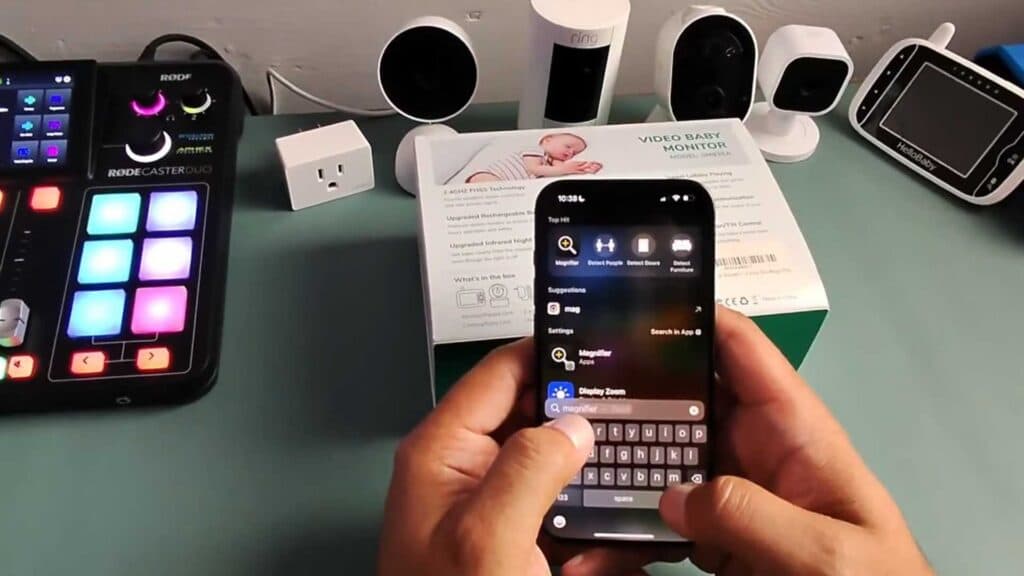
- Open the Magnifier app by searching for it on your device [0:10].
- Open the settings menu within the app to customize your controls and toggle features like object detection [0:19].
- Use the primary slider to zoom in on your subject or the secondary controls to adjust the contrast, color filters, or camera flash [0:43].
- Tap the reader button if you need the device to transcribe the text you are looking at [1:09].
- Long-press the detect button to select specific items to look for, such as doors, people, or scenes [1:38].
Ninja Tip: You can quickly launch the Magnifier by triple-clicking the side button (on iPhones with Face ID) or the Home button (on iPhones with a Touch ID sensor) by enabling the Accessibility Shortcut in Settings > Accessibility > Accessibility Shortcut.
If the Magnifier still does not function as expected, you can reset your device settings by going to Settings > General > Transfer or Reset iPhone > Reset > Reset All Settings.
Keep Reading



