How to Edit or Change Your Ecobee Thermostat Schedule

By Trae Jacobs,

When you buy through our links, we may earn an affiliate commission.
Your Ecobee thermostat is running a heating or cooling schedule that does not fit your current daily routine. You can update these times and temperature settings directly from your thermostat interface.
- Select your specific thermostat from the home screen if you have multiple zones in your house [0:08].
- Open the main menu by selecting the settings icon located in the upper right corner of the screen [0:15].
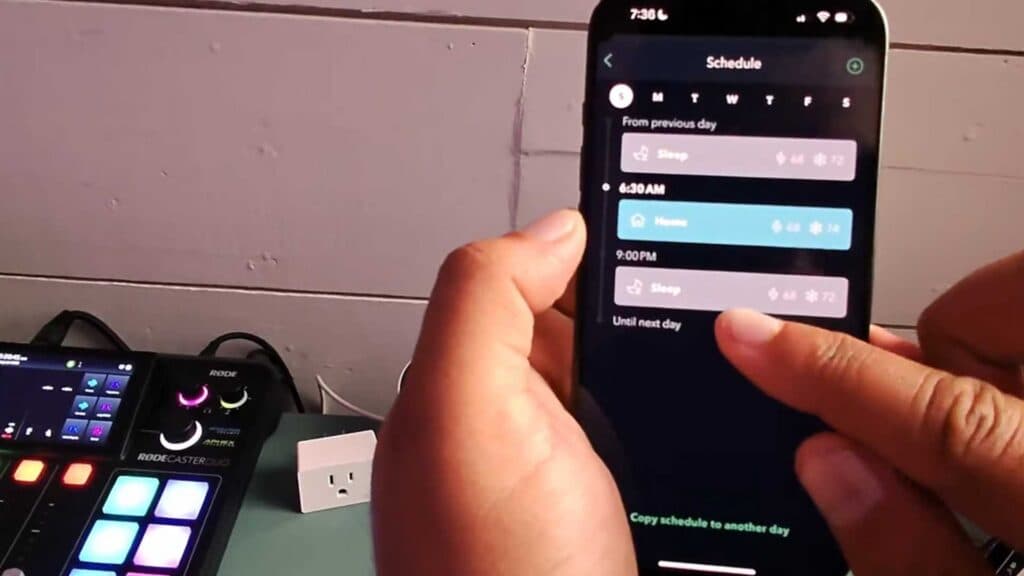
- Tap on “Schedule” to view your current temperature activities [0:17].
- Select a specific activity to edit or remove it from your schedule [0:25].
- Adjust the start times for your existing activities, like your sleep schedule, and hit save to apply the changes [0:52].
- Navigate back to the main menu and select “Comfort Settings” to customize the target temperatures for specific modes like Sleep or Home [1:00].
- Tap the plus icon at the top of the schedule screen if you need to add a new time block or activity to your day [1:54].
Ninja Tip: You can create a “Vacation” event in the main menu to hold a specific temperature for a set date range, which overrides your normal schedule without requiring you to delete your existing settings.
If you encounter persistent software errors, perform a factory reset by navigating to Main Menu > Settings > Reset > Reset All Settings.
Keep Reading




