How to Drop a Pin on Apple Maps on iPhone

By Trae Jacobs,

When you buy through our links, we may earn an affiliate commission.
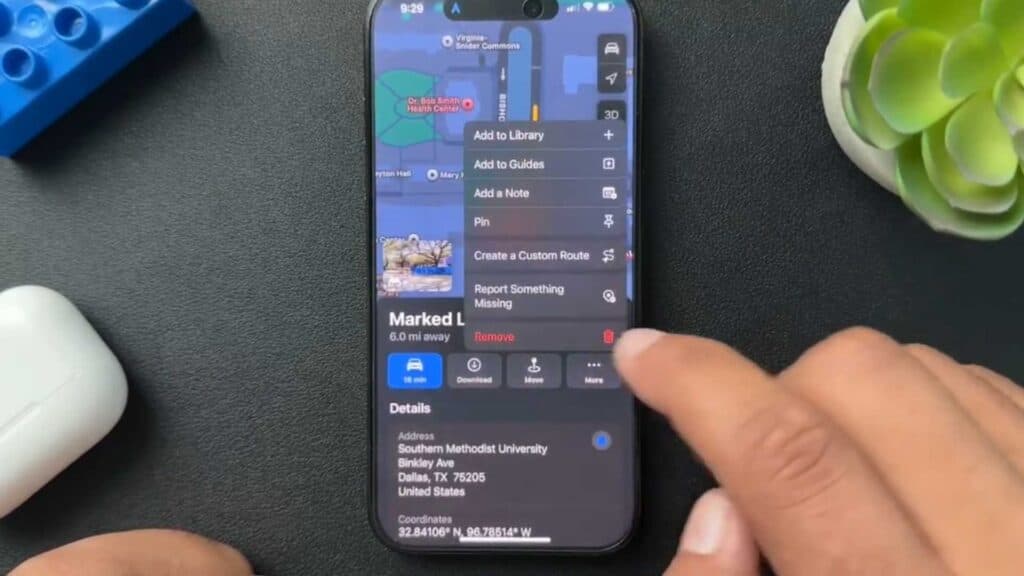
You need to mark a specific location on your iPhone so you can save or share it with others. You can easily place a pin on the map by following a few simple steps.
- Open the Maps app and navigate to the area where you want to drop your pin [0:13].
- Press and hold your finger down on the exact spot to create the pin [0:22].
- Review the information that appears about the location and tap to share it through text or email [0:32].
- Save the pin to your saved items so you can access it again later [0:43].
- Tap on the pin to add your own custom notes if you need to remember details about the spot [0:55].
- Repeat this process anywhere on the map to mark additional locations.
Ninja Tip: You can quickly access your saved pins by scrolling down on the main Maps search card to the Saved section, where you can organize them into specific lists.
If the Maps app refuses to function correctly, perform a reset by going to Settings > General > Transfer or Reset iPhone > Reset > Reset Location & Privacy.
Keep Reading



