How to Download and Organize Apps on Your Samsung Smart TV

By Trae Jacobs,

When you buy through our links, we may earn an affiliate commission.
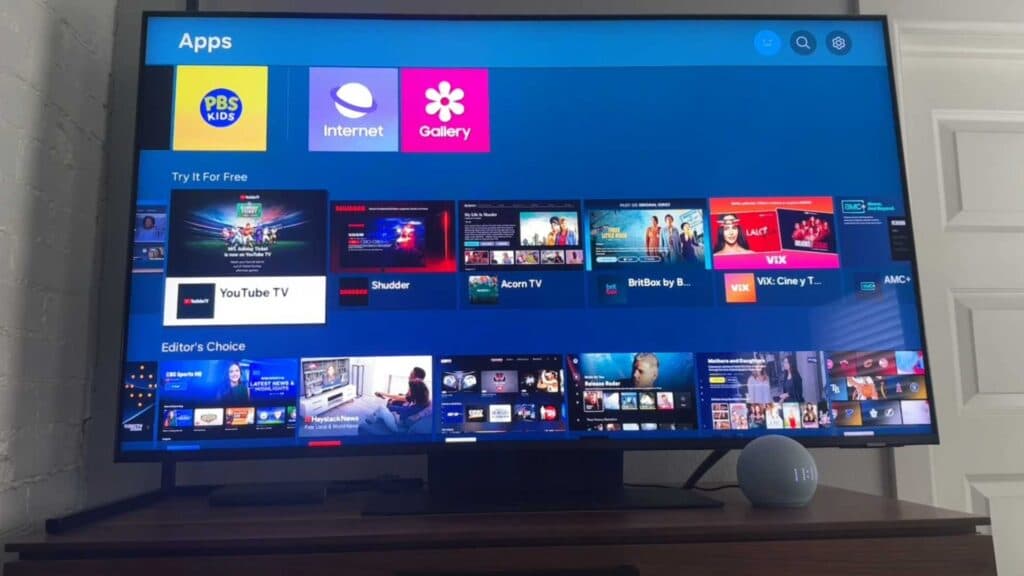
Your Samsung Smart TV home screen lacks the apps you want to use. You can install new services and rearrange your menu in just a few minutes.
- Open the Apps section from your home menu [0:08].
- Find the app you want, select it, and click Install [0:21].
- Close the installation notification that pops up on your screen [0:37].
- Select the option to Add to Home [0:42].
- Move the app tile to your preferred spot on the home screen using the arrow indicator, then press OK to lock it in place.
Ninja Tip: If your TV is running slow, try clearing the cache for specific apps in your settings menu to free up memory without doing a full reset.
If you still encounter issues, perform a factory reset by navigating to Settings > General > Reset.
Keep Reading


