How to Download and Install Apps on Your iPhone

By Trae Jacobs,

When you buy through our links, we may earn an affiliate commission.
You need to download a new application on your iPhone and don’t know where to start. You can get any app you want installed in just a few minutes by following these steps.
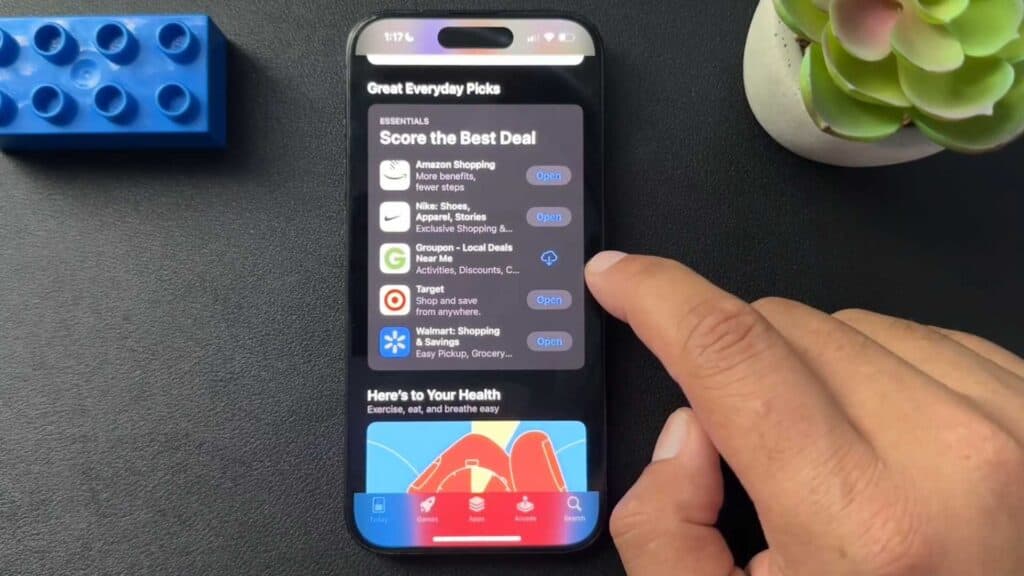
- Locate and open the App Store icon on your home screen [0:30].
- Tap the search icon at the bottom of the screen to find the specific app you want [1:00].
- Type the name of your app into the search bar, then tap the “Get” button next to the listing [1:10]. Keep in mind that the first result shown is often a paid advertisement.
- Double-click the side button on your iPhone to verify the download with Face ID [1:33].
- Wait for the download to finish, then tap “Open” to launch your new app or find it on the last page of your home screen.
Ninja Tip: If you want to keep your home screen tidy, go to Settings > App Store and enable “Automatic Downloads” to ensure new apps download to your device without cluttering your main screens.
If the App Store is not functioning correctly, you can try signing out of your Apple ID and signing back in under Settings > [Your Name] > Sign Out.
Keep Reading


