How to Download and Install Apps on Chromecast with Google TV

By Trae Jacobs,

When you buy through our links, we may earn an affiliate commission.
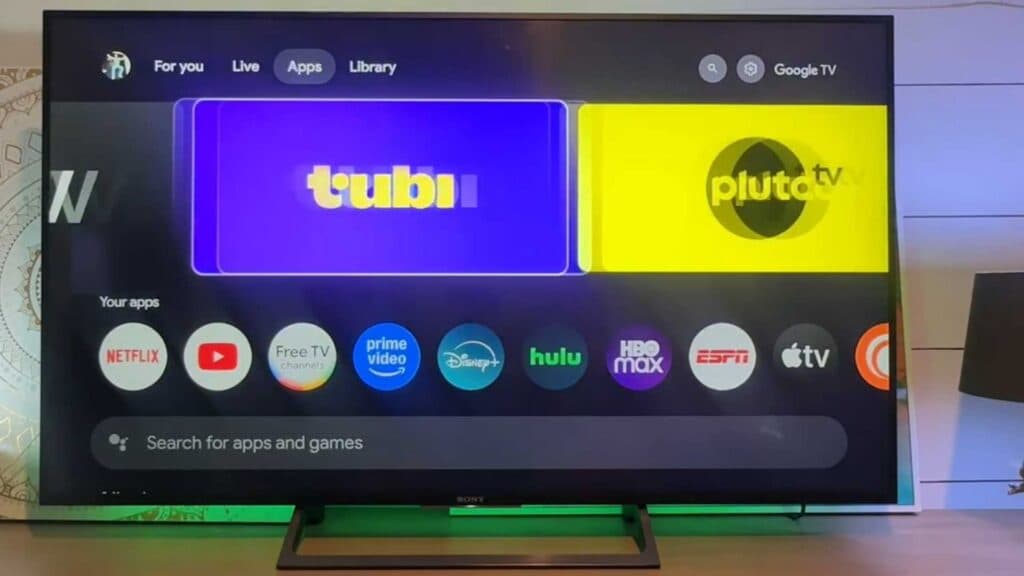
You need to add a new app to your Chromecast with Google TV device. You can install any available app directly from your home screen in just a few minutes.
- Use your remote to navigate over to the Apps section on your home screen [0:13].
- Select the search feature to look for the specific app you want to download [0:23].
- Choose the app from the results, select it, and click Install [0:33].
- Once the installation finishes, select Open to launch the app and sign in or subscribe as needed.
Ninja Tip: If you are having trouble finding a specific app, try using the Google Assistant button on your remote to voice search for the app name directly. This is often faster than typing it out on the on-screen keyboard.
If you encounter persistent installation errors, you can perform a factory reset by going to Settings > System > About > Factory reset.
Keep Reading



