How to Double Space in Google Docs

By Trae Jacobs,

When you buy through our links, we may earn an affiliate commission.
Your Google Docs document currently uses single spacing, but you need to change it to meet formatting requirements. You can easily adjust your line spacing and document margins to get the look you need.
- If you already have text written, highlight it, click Format, select Line & paragraph spacing, and then choose Double [0:12].
- If you are starting a new document, apply the double spacing setting before you begin typing so it happens automatically [0:32].
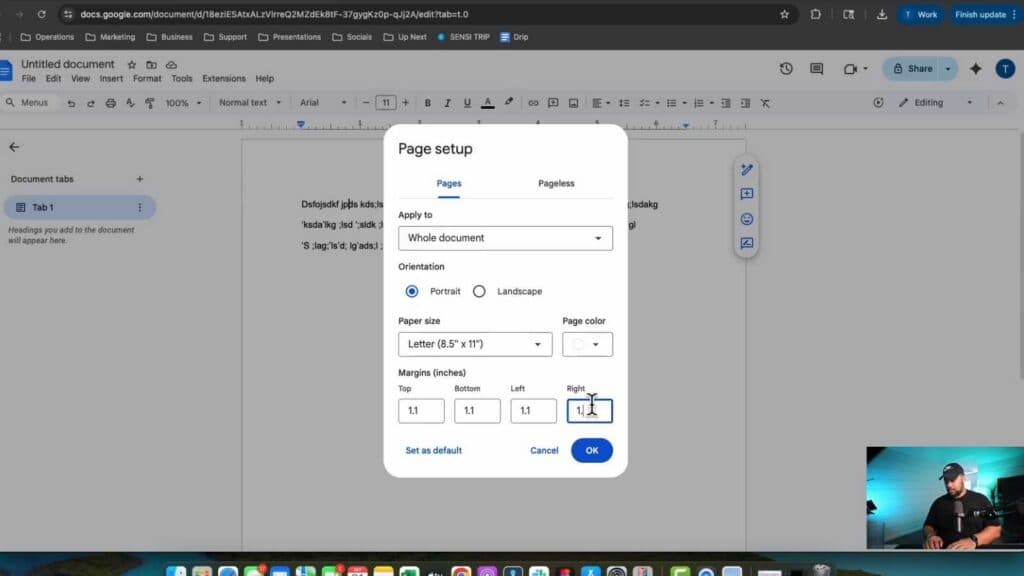
- To make your document longer, go to File and select Page setup to manually adjust your margins [1:05].
- Change your top, bottom, left, and right margins to 1.1 inches to slightly increase the total length of your paper.
Ninja Tip: If you want these settings to apply to every new document you create, go to Format > Paragraph styles > Normal text > Update ‘Normal text’ to match, then click Format > Paragraph styles > Options > Save as my default styles.
If you ever need to revert your document to its original state, select the text and choose Format > Paragraph styles > Normal text > Reset styles.
Keep Reading



