How to Disable Automatic Podcast Downloads on iPhone and iPad

By Trae Jacobs,

When you buy through our links, we may earn an affiliate commission.
Your Apple Podcasts app is automatically downloading new episodes to your device. You can change your settings to stop these automatic downloads and save storage space.
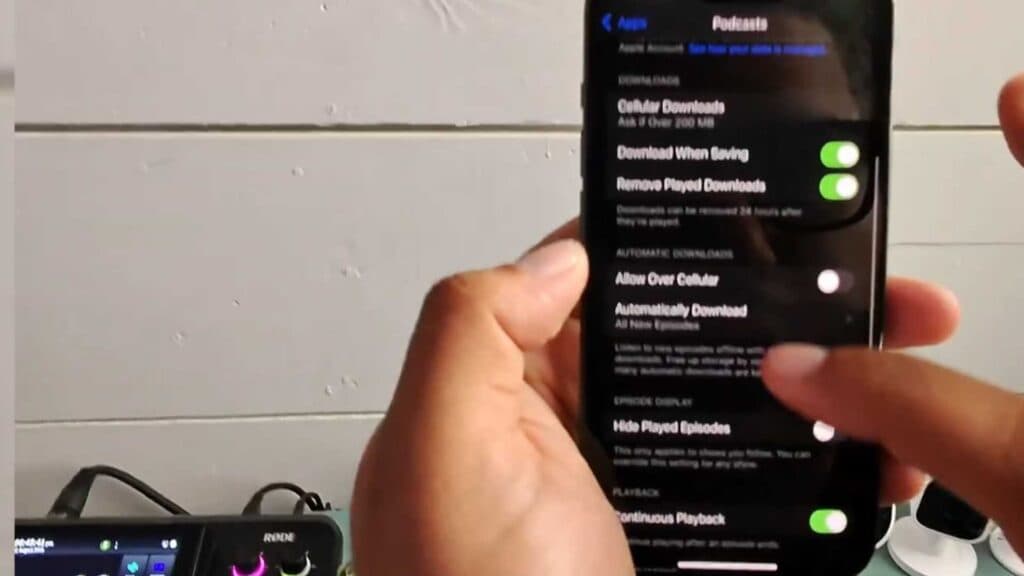
- Open the Settings app on your device, scroll down to find the Podcasts app, and select it. [0:23]
- Locate the Automatically Download option and toggle it off to stop all new episodes from downloading by default. [0:46]
- If you want to keep downloads enabled for specific shows only, open the Podcasts app, select a show, tap the three dots in the top right corner, and go to Settings. [1:20]
- Select Downloads within the show’s settings menu and choose your preferred option, such as only downloading the latest episode. [1:29]
- To delete existing downloaded episodes, go to the Library tab in the Podcasts app, tap Downloaded, select the show, and use the three dots to remove the downloads. [1:56]
Ninja Tip: To prevent your device from filling up with old episodes you have already listened to, go to your main Podcast settings and enable “Remove Played Downloads” so the app clears space automatically.
If you still experience issues with storage or app performance, navigate to Settings > General > iPhone Storage > Podcasts and select “Offload App” to clear the app’s cached data.
Keep Reading



