How to Delete or Lock Apps on a Samsung Smart TV

By Trae Jacobs,

When you buy through our links, we may earn an affiliate commission.
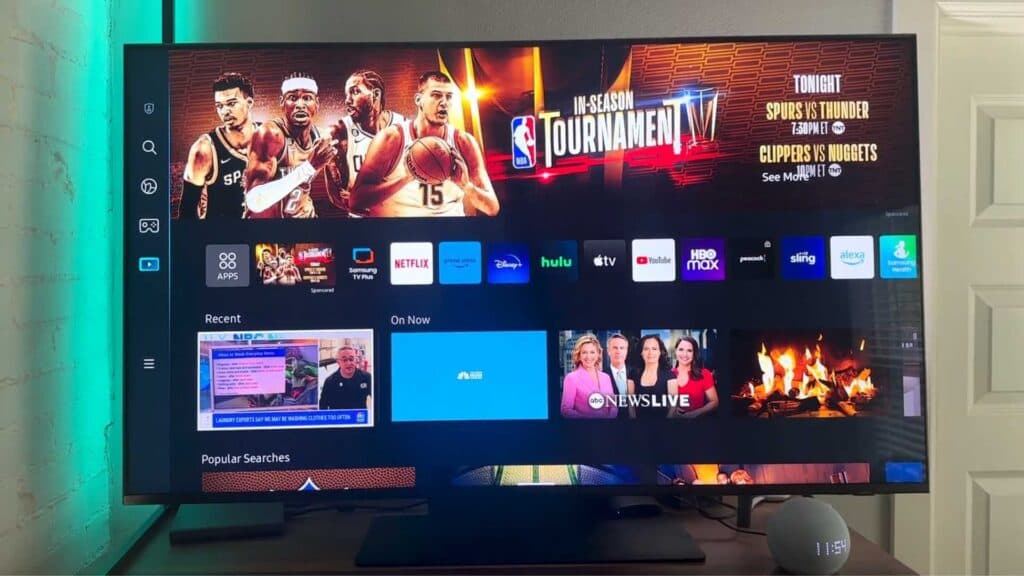
Your Samsung TV displays pre-installed apps you cannot remove and user-added apps you want to delete. You can manage these apps and secure them with a PIN using the system menu.
- Open the Apps tab on your home screen to view all installed applications [0:34].
- Scroll through your apps and select Delete for any items you previously added if you no longer want them on your device [0:57].
- Select the Lock option for pre-installed apps like YouTube that cannot be deleted to prevent unauthorized access [1:17].
- Enter your four-digit PIN to finalize the lock, using 0000 as the default if you have never changed it [1:31].
Ninja Tip: You can change your default PIN for better security by navigating to Settings > General & Privacy > System Manager > Change PIN.
If you need a completely clean slate, perform a factory reset by going to Settings > General & Privacy > Reset.
Keep Reading

