How to Delete Instagram Posts, Reels, and Tags

By Trae Jacobs,

When you buy through our links, we may earn an affiliate commission.
Your Instagram profile is cluttered with old posts, reels, and unwanted tags that you want to remove. You can clean up your page by following these simple steps to manage your content.
- To delete a standard post, go to your profile, select the post, tap the three dots in the upper right corner, and choose Delete. [0:11]
- If you want to remove a post you collaborated on, tap the three dots on the post and select Stop Sharing to remove the collaboration and the post from your wall. [0:32]
- To hide or remove tagged photos, open the tagged section of your profile, tap the three dots, select Post Options, and choose either Hide from Profile or Remove Tag. [0:54]
- Deleting a reel follows the same process as a regular post; just tap the three dots on the reel and select Delete. [1:23]
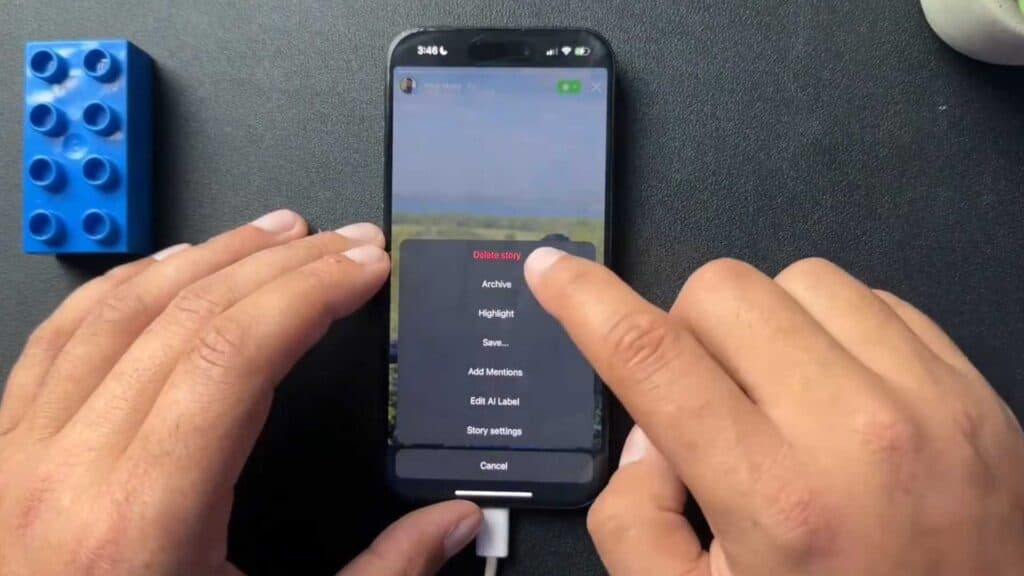
- Open your current story, tap the More button in the corner, and select Delete Story to remove it from your account.
Ninja Tip: You can also use the ‘Your Activity’ menu in your Instagram settings to bulk-manage your content, which allows you to delete multiple posts, reels, or comments all at once instead of one by one.
If you want to clear your account entirely, navigate to Settings > Account Center > Personal Details > Account Ownership and Control > Deactivation or Deletion.
Keep Reading



