How to Delete a Facebook Page Permanently

By Trae Jacobs,

When you buy through our links, we may earn an affiliate commission.
You have an old Facebook page that you no longer need or use. You can remove it from your account by following these steps.
- Open the Facebook app and switch your profile to the page you want to delete [0:12].
- Tap the menu icon, select the settings gear, and scroll down to find Access and Control [0:33].
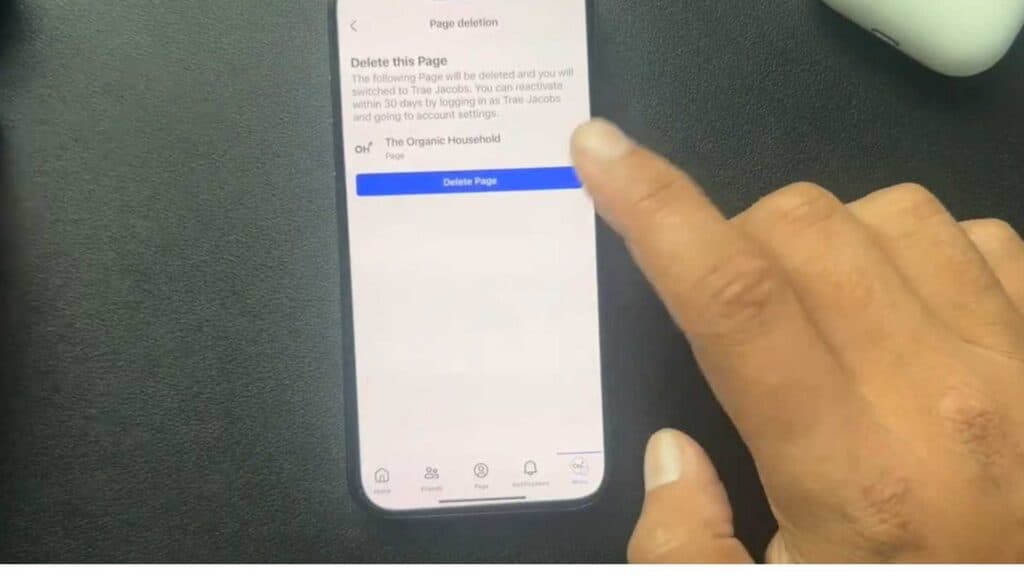
- Choose Deactivate or Delete, select the Delete Page option, and tap Continue [0:52].
- Review your data download options if you need them, then tap Continue to move forward [1:18].
- Enter your password to verify the request and confirm the permanent deletion of your page.
- On a desktop computer, click your profile picture, select See all profiles, and switch to the page you want to remove [2:23].
- Navigate to Settings & Privacy, click Settings, and find the Access and Control section [2:39].
- Select Delete Page, confirm your choice by entering your password, and finish the process.
Ninja Tip: Before you finalize the deletion, check if there are any scheduled posts or connected apps still tied to the page, as these will be cut off immediately once the page is gone.
If you want to remove your entire presence, go to Settings & Privacy > Settings > Accounts Centre > Personal details > Account ownership and control.
Keep Reading



