How to Delete a Facebook Business Page

By Trae Jacobs,

When you buy through our links, we may earn an affiliate commission.
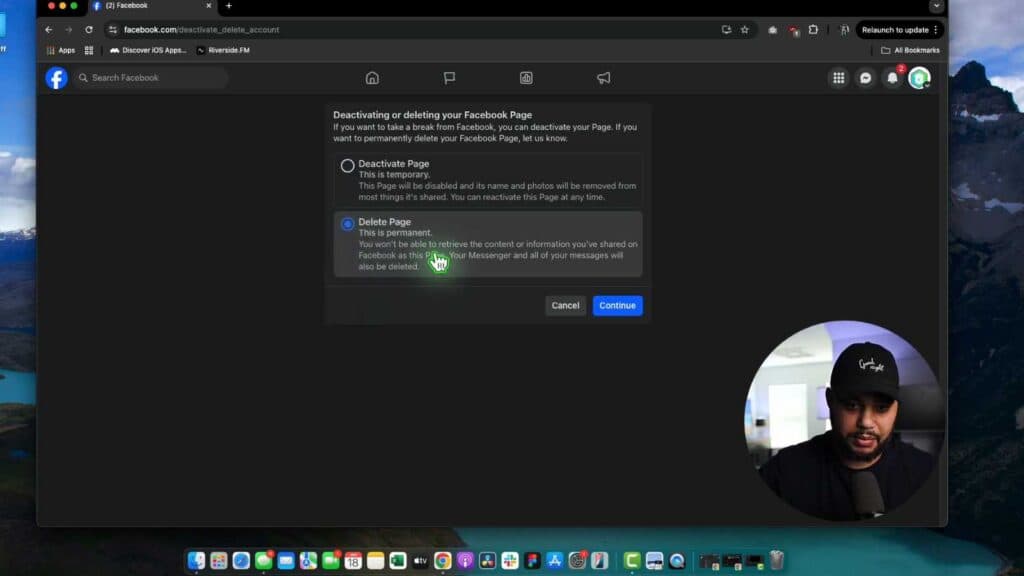
Your old Facebook business page is cluttering your account and you need it gone. You can remove it permanently by following a few simple steps.
- Log into your Facebook account and switch to the specific page you want to remove [0:18].
- Open your Page’s professional dashboard and scroll down until you reach the page access settings [0:35].
- Select the option for access and control to view your management settings [0:52].
- Choose the delete page option, confirm you want to proceed, and enter your password to finalize the request.
Ninja Tip:
Before hitting delete, remember to download a copy of your page data from your privacy settings if you want to save any posts or images. If you have second thoughts, you have a 30-day window to log back in and cancel the deletion before it becomes permanent.
If you are unable to locate these settings, check your Meta Business Suite dashboard under Settings > Business Assets to see if your page permissions are managed through a business portfolio.
Keep Reading



