How to Customize Your iPhone Lock Screen

By Trae Jacobs,

When you buy through our links, we may earn an affiliate commission.
Your iPhone lock screen displays the default layout and lacks the personalized look you want. You can easily change the fonts, colors, and widgets to make the interface your own.
- Press and hold your lock screen until the editing mode appears, then tap Customize and select Lock Screen [0:18].
- Tap the top section to choose or remove date-related information and suggested widgets [0:39].
- Select the clock to adjust the font style, thickness, and text color for that section [1:05].
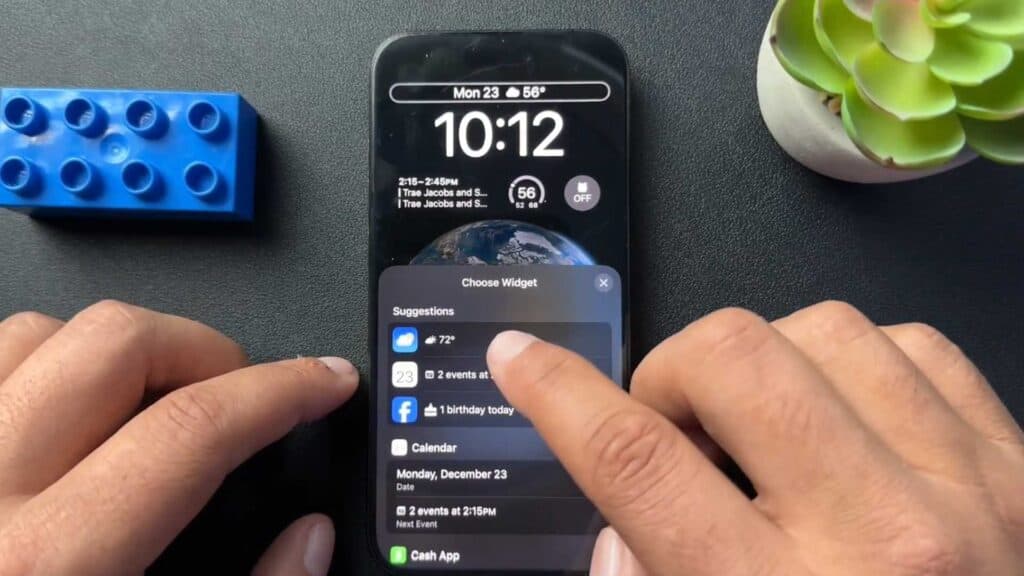
- Tap the widget area at the bottom to add or remove app widgets, keeping in mind you are limited to three slots at once [1:33].
- Tap Add New at the bottom to select a new background, such as a photo or a dynamic photo shuffle.
- Tap Done to save your new layout and apply it to your lock screen.
Ninja Tip: You can also link your custom lock screen to a specific Focus mode by tapping the Focus button on the edit screen, so your phone automatically switches to that lock screen when you turn on Work, Sleep, or Personal modes.
If you want to return to your original layout, go to Settings > Wallpaper and swipe through your saved screens to delete the custom one.
Keep Reading

