How to Customize Your Instagram Group Chat Theme and Background

By Trae Jacobs,

When you buy through our links, we may earn an affiliate commission.
Your Instagram group chats look plain because you haven’t set a custom theme or background yet. You can personalize your group conversations by following these steps.
- Open your Instagram group chat and tap the name of the group at the top to access the chat settings [0:22].
- Select the “Theme” option to see a list of built-in styles you can apply to the chat [0:28].
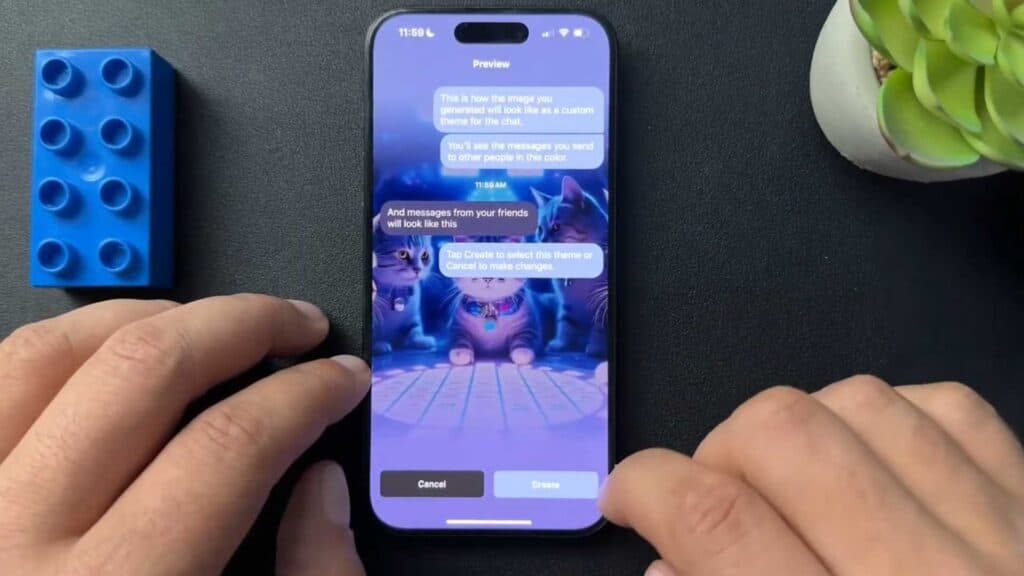
- Choose “Create with AI” if you want to generate a unique background by typing in a description of what you want to see [0:34].
- Tap “Next” after your AI-generated background is ready to apply it to the chat [0:57].
- Change the group name or profile image within the same settings menu by choosing from the built-in library or creating a new one with Meta AI [1:04].
- Add a custom emoji to the chat by selecting the option to change the background or by choosing an image from your device library.
Ninja Tip: You can quickly change the theme without opening the settings menu by long-pressing on any message in the chat and selecting “Theme” from the pop-up menu.
If these customizations do not appear, ensure your app is fully updated via the App Store or Google Play Store.
Keep Reading



