How to Crop and Resize Photos on iPhone

By Trae Jacobs,

When you buy through our links, we may earn an affiliate commission.
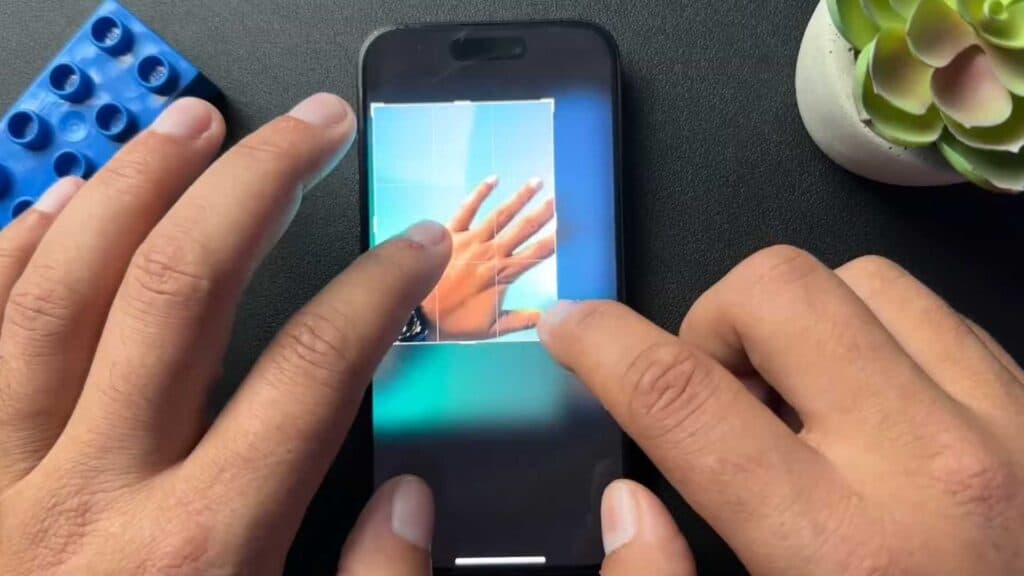
Your iPhone photos have unnecessary edges or the wrong dimensions. You can fix this quickly using the built-in editing tools.
- Open the photo you want to change in your gallery and tap Edit at the bottom of the screen [0:20].
- Tap the Crop icon located in the bottom toolbar to open the cropping menu [0:27].
- Drag the corners or sides of the frame to adjust the image to your preferred size [0:40].
- Tap the Aspect Ratio icon (the squares at the top) to choose preset dimensions like 9:16, 3:4, or square [0:53].
- Adjust the image inside your chosen frame, or tap the Lock icon if you want to switch back to freeform cropping [1:57].
- Tap Done to save your changes.
Ninja Tip: If you ever mess up your crop and want to start over, you can tap the Revert button in the editing menu to instantly reset the image to its original, unedited state.
If the editing tools fail to open, restart your device or navigate to Settings > General > Software Update to ensure you are running the latest version of iOS.
Keep Reading



