How to Create a New Apple ID on Your iPhone

By Trae Jacobs,

When you buy through our links, we may earn an affiliate commission.
Your iPhone currently lacks an Apple ID, which prevents you from using services like iCloud, FaceTime, and the App Store. You can create a brand-new account directly from your settings menu.
- Open your Settings app and tap the Apple account section at the very top [0:23].
- Tap Don’t have an Apple account at the bottom of the screen [0:37].
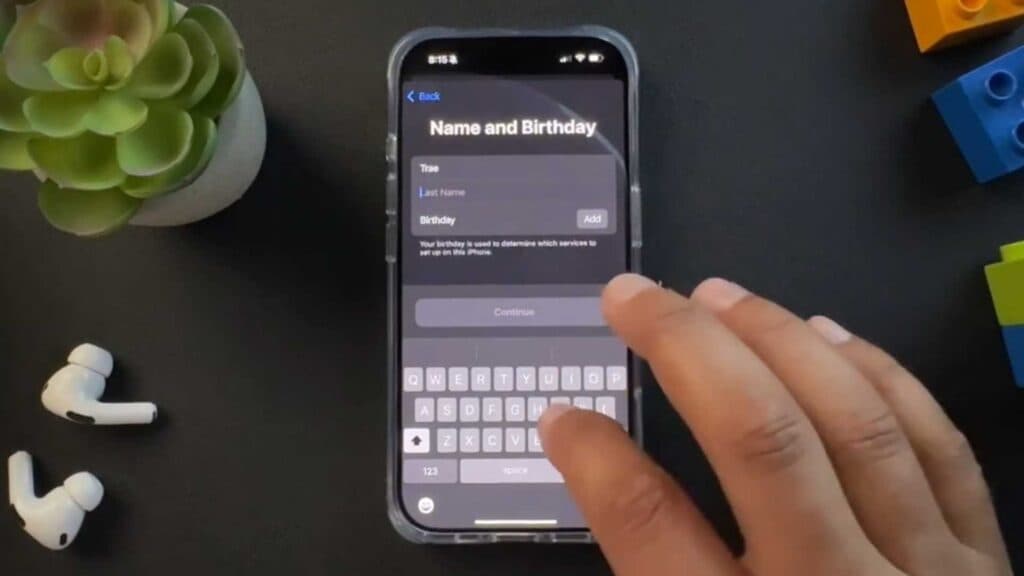
- Select the Adult option and enter your first name, last name, and birthday [0:43].
- Enter the email address you want to use for your account, or tap Don’t have an email address to create a free iCloud email if your current one is already linked to an existing Apple ID [0:54].
- If you choose to use an existing email that is already attached to another account, you must log into that account first to remove or delete the email address before it can be used here [1:06].
- Set a password, verify your phone number, and agree to the Apple terms and conditions to finish the setup.
Ninja Tip: Once your account is set up, go to Settings > [Your Name] > Password & Security to enable Two-Factor Authentication, which is the most effective way to keep your new account secure from unauthorized access.
If you encounter persistent account conflicts or errors during this process, you can perform a factory reset by navigating to Settings > General > Transfer or Reset iPhone > Erase All Content and Settings.
Keep Reading


