How to Convert JPEGs and PNGs to PDFs on iPhone Without Apps

By Trae Jacobs,

When you buy through our links, we may earn an affiliate commission.
You have an image on your iPhone that you need to convert into a PDF file. You can do this quickly using the built-in Files app without downloading any third-party software.
- Locate your image, press and hold on it or tap the three dots icon, and select Copy [0:36].
- Open the Files app and navigate to the folder where you want to save your file [0:45].
- Long press inside the folder and select Paste to move your image into the Files app [1:14].
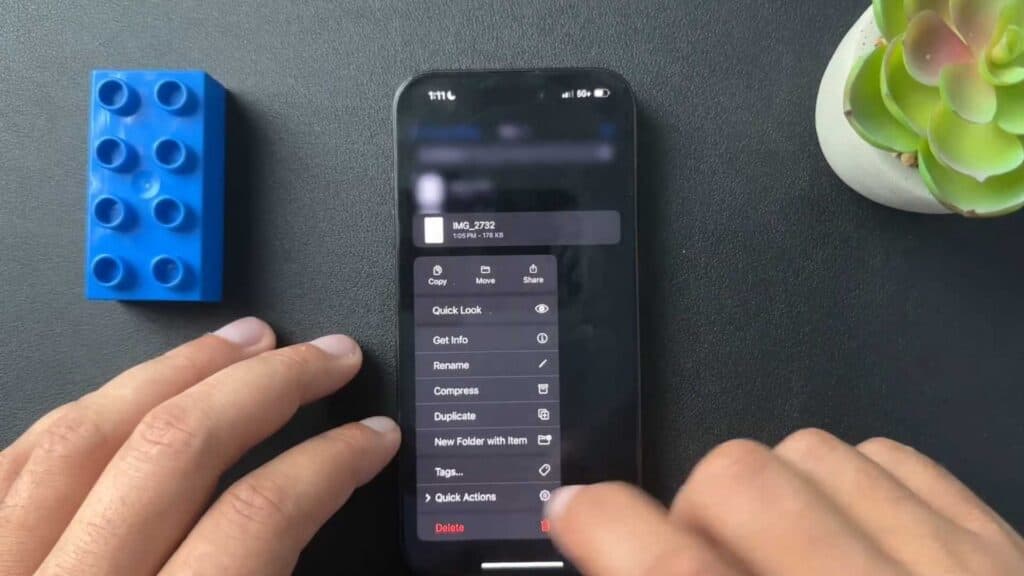
- Long press on the image file, select Quick Actions from the menu, and tap Create PDF [1:30].
Ninja Tip: You can select multiple images at once by tapping the three dots in the top right corner of the Files app, choosing Select, tapping all the images you want, and then hitting the Quick Actions button to combine them all into a single multi-page PDF.
If you encounter persistent issues with system files or the Files app, you can reset your device settings via Settings > General > Transfer or Reset iPhone > Reset > Reset All Settings.
Keep Reading



