How to Convert Images to PDF on iPhone Without Extra Apps

By Trae Jacobs,

When you buy through our links, we may earn an affiliate commission.
You have images on your iPhone that you need to share or store as PDF files. You can convert these files directly within your device without downloading any third-party applications.
- Open the Photos app and tap the share button on the image you want to convert [0:30].
- Select “Save to Files” and choose the folder where you want to store the image [0:37].
- Open the Files app and navigate to the folder where you just saved the image [0:56].
- Long-press on the image, select “Quick Actions,” and then tap “Create PDF” to generate the new file [1:13].
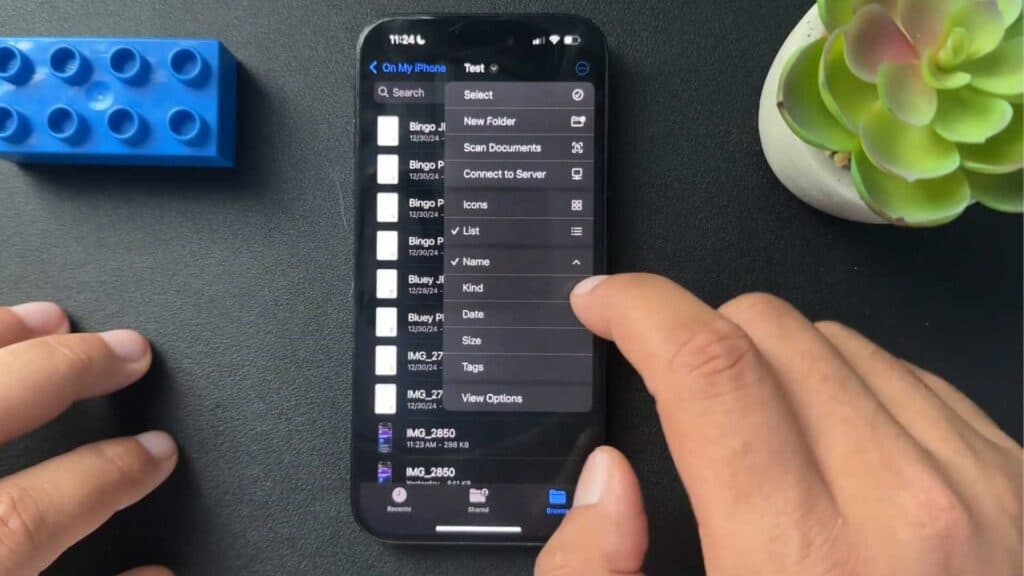
- To convert multiple images at once, tap the three dots in the top corner of the Files app, select the images you want, tap the three dots again, and choose “Create PDF.”
Ninja Tip: You can quickly rename your new PDF file by long-pressing the file and selecting “Rename” to keep your documents organized and easy to search later.
If the files app is missing, you can reinstall it by searching for “Files” in the App Store.
Keep Reading



