How to Convert Image Formats on iPhone

By Trae Jacobs,

When you buy through our links, we may earn an affiliate commission.
You need to change an image file from PNG to JPEG or HEIC on your iPhone. You can convert these formats directly using the built-in Files app.
- Open your Photos app, select the image, tap the share icon, and choose Copy to grab the file. [0:44]
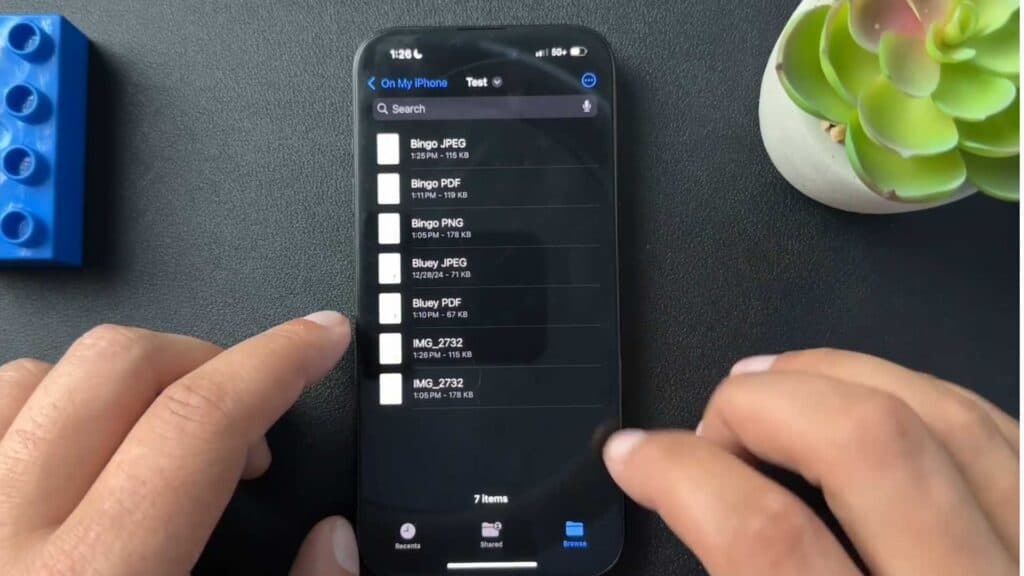
- Open the Files app and paste the image into a folder of your choice by long-pressing an empty space and selecting Paste. [1:15]
- Long-press the image file, select Quick Actions, and then tap Convert Image to choose your preferred format and file size. [1:30]
- Long-press the file again if you want to select Rename and give it a new name. [2:11]
- Open your converted image, tap the share button, and select Save Image to move the new file back into your main Photos app library.
Ninja Tip: You can convert multiple photos at once by tapping the three dots in the top right corner of the Files app, selecting Select, tapping all the images you want, and then following the same Quick Actions conversion steps.
If you experience persistent file errors, you can reset your device’s settings via Settings > General > Transfer or Reset iPhone > Reset > Reset All Settings.
Keep Reading


