How to Connect Your TP-Link or Kasa Smart Plug to WiFi

By Trae Jacobs,

When you buy through our links, we may earn an affiliate commission.
Your smart plug isn’t connecting to your home network. You can fix this connection issue by following a few simple steps.
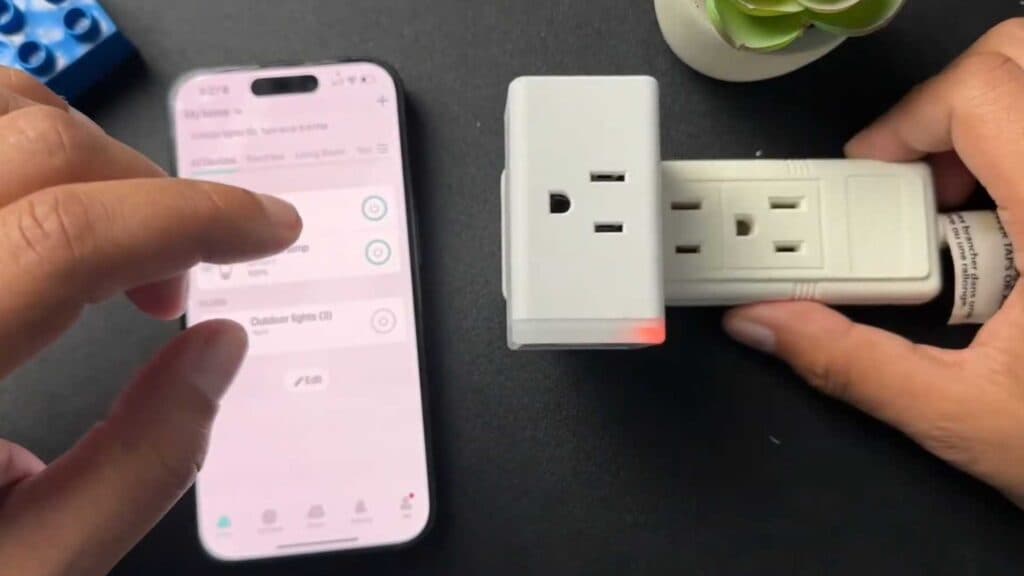
- Plug your smart plug into a wall outlet and wait for the indicator light to blink red and blue [0:15].
- Open your Kasa app, tap the plus sign in the top right corner, and select your specific device model [0:31].
- Confirm that your smart plug light is blinking correctly in the app and tap next [0:48].
- Open your phone’s WiFi settings, select the TP-Link network from the list, and then return to the app [1:02].
- Select your home WiFi network from the list, enter your password, and hit join to complete the setup [1:24].
- Give your device a unique name, assign it an icon, and choose its location in your home to finish the configuration.
Ninja Tip: If your plug refuses to connect, ensure you are using a 2.4GHz WiFi network, as these smart plugs typically cannot see or connect to 5GHz signals.
If the device still fails to connect, perform a factory reset by holding the power button on the side of the plug until the light starts flashing again.
Keep Reading