How to Connect Your Smart TV to Your Phone’s Mobile Hotspot

By Trae Jacobs,

When you buy through our links, we may earn an affiliate commission.
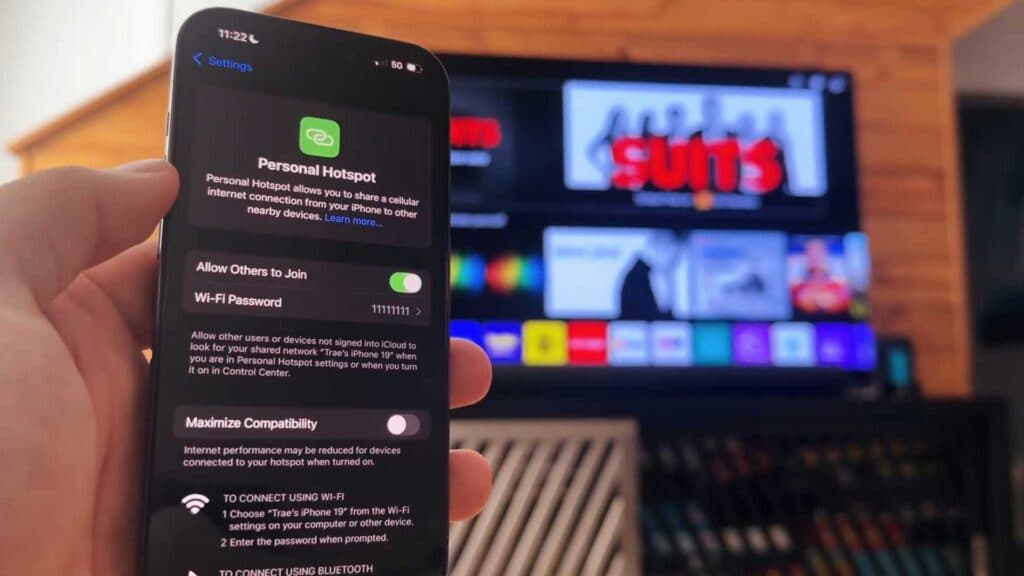
Your TV cannot connect to the internet because you do not have a home Wi-Fi network. You can fix this by using your smartphone as a mobile hotspot to provide a data connection.
- Open your phone’s settings and navigate to the Personal Hotspot menu, then enable the option that allows other devices to join your network. [0:16]
- On your TV, open the settings menu and go to the network section. [0:37]
- Select the Wi-Fi connection option and choose your phone’s hotspot name from the list of available networks. [0:45]
- Enter the password for your mobile hotspot and select connect.
Ninja Tip: If your stream is lagging, go into your phone’s hotspot settings and change the frequency band from 2.4 GHz to 5 GHz for a faster, more stable connection.
If the connection fails or you encounter persistent network errors, perform a factory reset through Settings > General > Reset to Initial Settings.
Keep Reading


