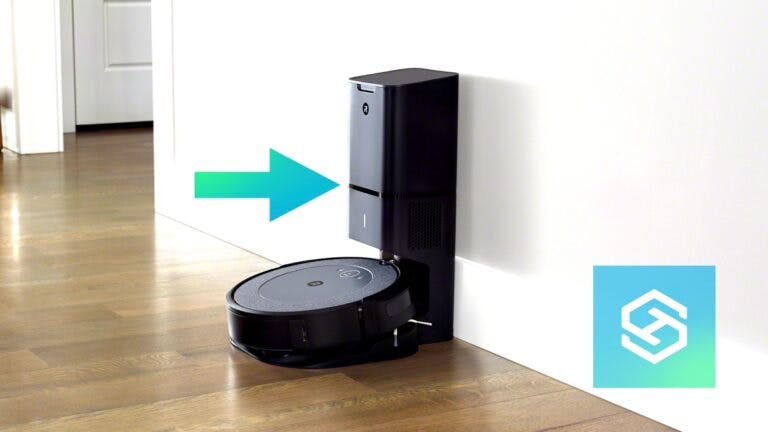
How to Connect Your Roomba to Wi-Fi and the iRobot App

By Trae Jacobs,

When you buy through our links, we may earn an affiliate commission.
Your Roomba is currently not connected to your home network or the app. You can fix this by following a few simple steps to pair your vacuum.
- Open the iRobot app on your phone and select the menu to choose add your product [0:49].
- Grant the app permission to access your local network and location so it can find the robot [1:12].
- Select your specific vacuum model from the list to begin the setup process [1:36].
- Choose a permanent location for your charging station where the vacuum will not be bumped [2:00].
- Select your Wi-Fi network and enter your network password [2:15].
- Press and hold the spot and home buttons on the vacuum for two seconds to activate pairing mode [2:31].
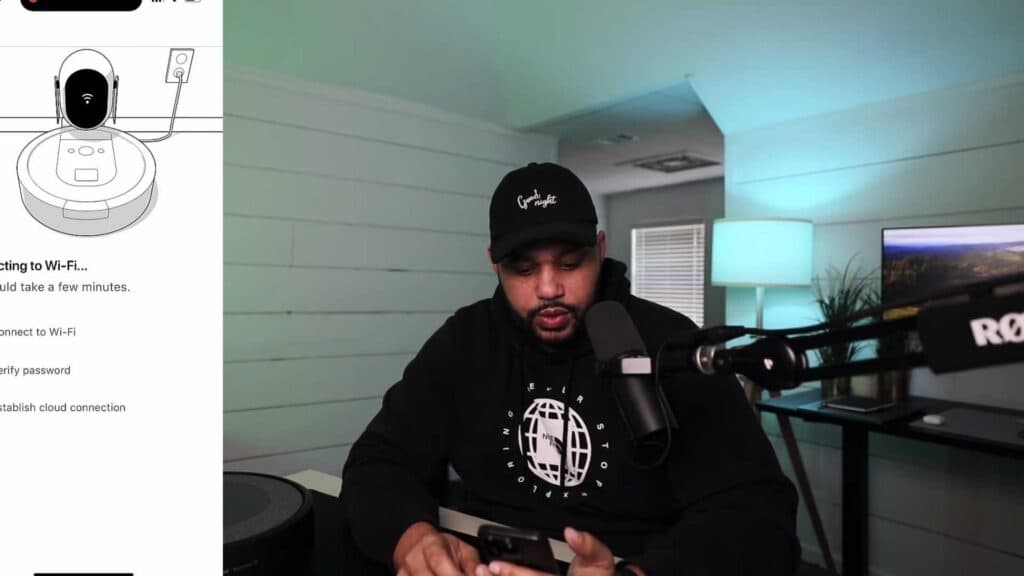
- Wait for the app to verify the password and establish a cloud connection [3:15].
- Give your Roomba a name and confirm your settings to finish the process.
Ninja Tip: If your Roomba refuses to connect, ensure your phone is connected to a 2.4GHz Wi-Fi band, as most models cannot see or use 5GHz networks. Restarting your router before you begin often clears up hidden pairing glitches.
If you still cannot connect, perform a factory reset by holding the home, spot clean, and clean buttons simultaneously until the light ring swirls.
Keep Reading