How to Connect Your LG TV to Wi-Fi Without a Remote

By Trae Jacobs,

When you buy through our links, we may earn an affiliate commission.
You are currently unable to connect your LG TV to Wi-Fi because you do not have the remote control. You can fix this by using a few simple workarounds to navigate the menus and get back online.
- Locate the physical power button on your TV, which is typically found in the middle of the frame, and press it to turn the device on. [0:09]
- If you have an external streaming device like an Apple TV, Roku, or Chromecast already connected, use its remote to handle your streaming instead of connecting the TV itself to Wi-Fi. [0:26]
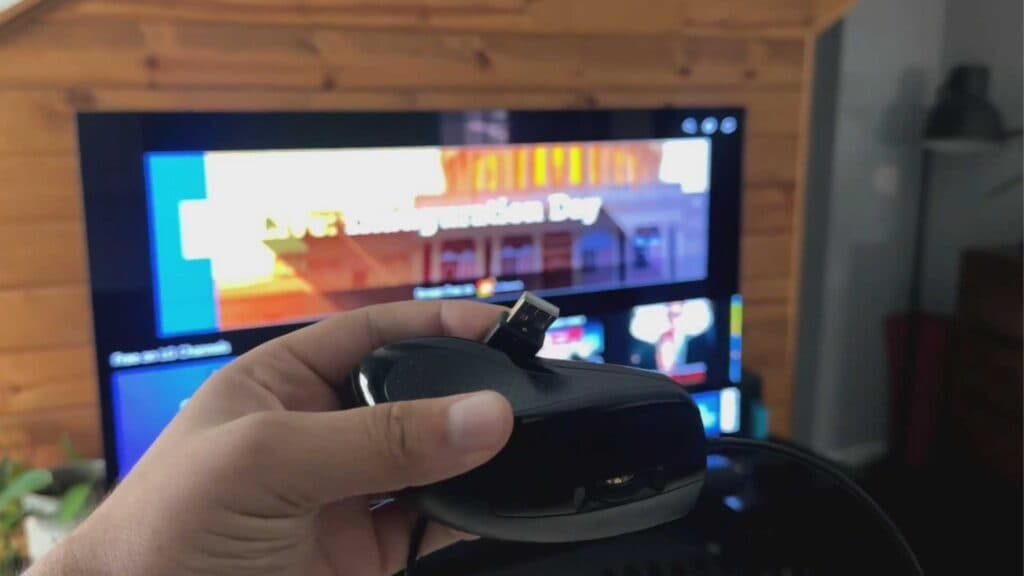
- Plug a standard USB mouse or keyboard into one of the USB ports on the back of your TV to navigate the interface. [0:58]
- Use the mouse to click through the on-screen menu, navigate to your network settings, and follow the prompts to connect to Wi-Fi. [1:23]
- Purchase a universal remote to regain full control over your TV’s menus and settings.
- Connect your router directly to the TV’s LAN port with an Ethernet cable to establish an immediate internet connection, which then allows you to use the LG ThinQ app on your smartphone as a remote.
Ninja Tip: If you have an LG smart TV, you can download the “LG ThinQ” app on your smartphone, and as long as your phone is connected to the same network as your TV via an Ethernet cable, you can use the app’s touchpad feature to navigate the settings menu without needing a physical remote.
If these options do not work, you can perform a factory reset by navigating to All Settings > General > Reset to Initial Settings.
Keep Reading



