How to Connect Your HP Printer to Wi-Fi Using the HP Smart App

By Trae Jacobs,

When you buy through our links, we may earn an affiliate commission.
Your HP printer is currently not connected to your Wi-Fi network. You can resolve this issue using the HP Smart app on your phone.
- Turn on your printer and verify the Wi-Fi light is blinking blue to show it is searching for a network [0:26]. If it isn’t, press and hold the Wi-Fi and Cancel buttons until the power light blinks [0:45].
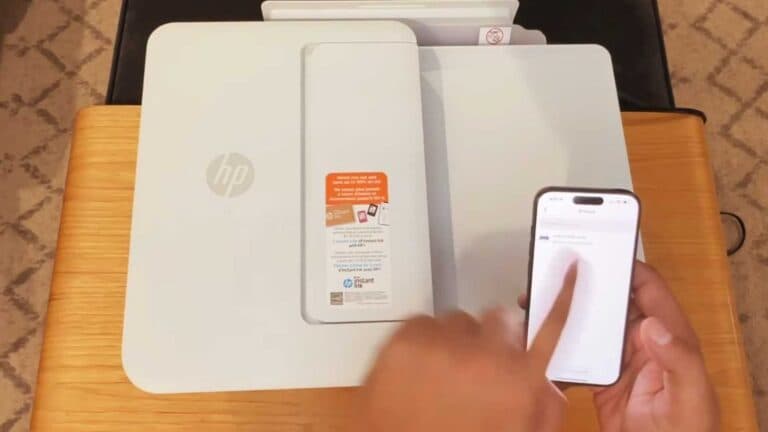
- Open the HP Smart app on your phone and select the option to add a new printer [1:08]. If the printer does not appear, open and close the printer lid to trigger discovery [1:20].
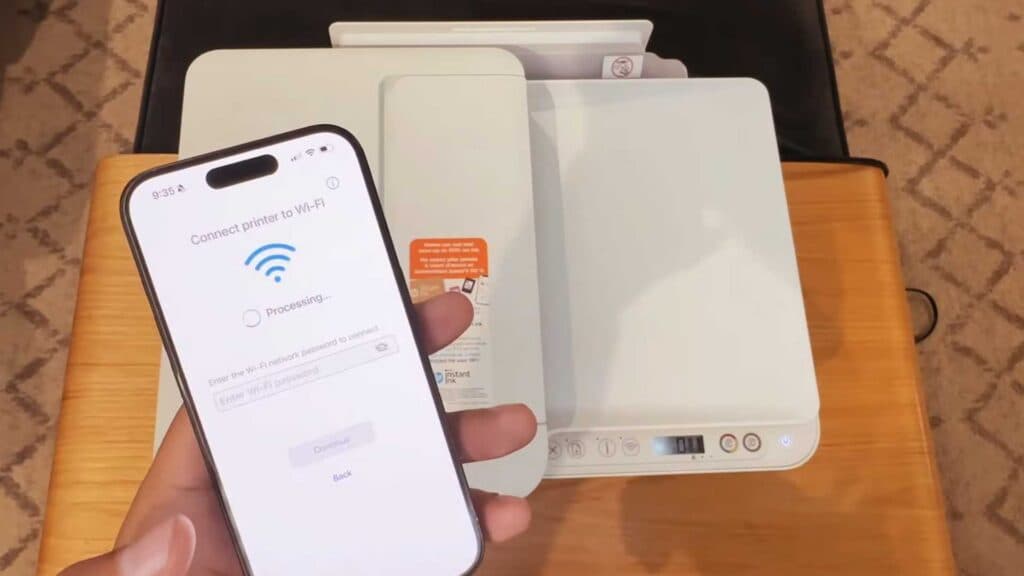
- Select your network in the app, enter your Wi-Fi password, and tap continue [1:38].
- Press and release the flashing information button on the printer to complete the connection.
Ninja Tip: If your printer still won’t connect, ensure your phone is connected to a 2.4GHz Wi-Fi network rather than a 5GHz band, as many older HP printers do not support 5GHz frequencies.
If the connection fails repeatedly, perform a factory reset through the printer’s Tools menu or by consulting the HP support page for your specific model.
Keep Reading