How to Connect Your AirPods to Your iPhone

By Trae Jacobs,

When you buy through our links, we may earn an affiliate commission.
Your AirPods are not currently connecting to your iPhone. You can resolve this issue by following these steps to re-pair your device.
- If your AirPods are linked to another person’s Apple account, ask them to remove the device using the Find My app or their iPhone settings [0:23].
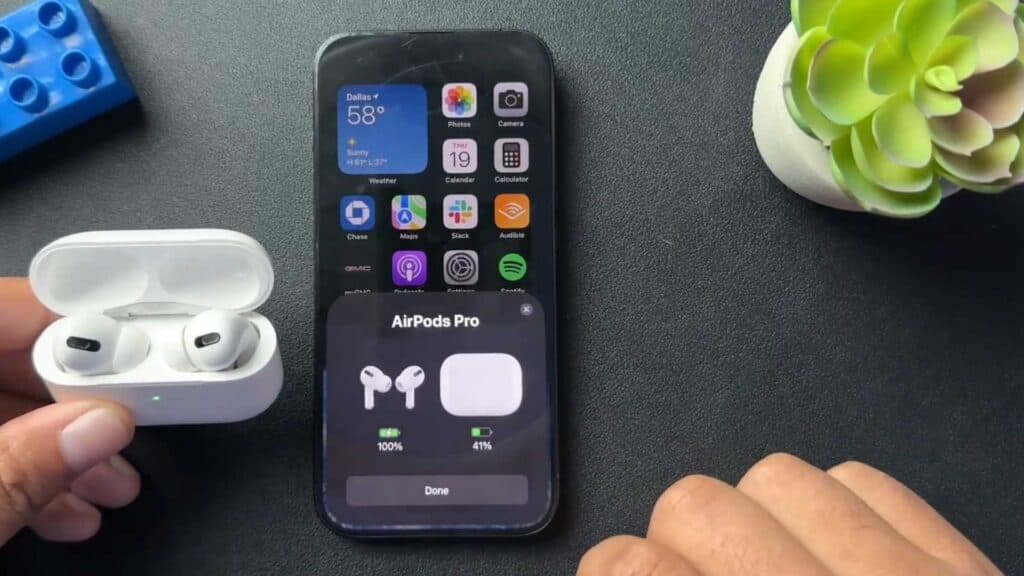
- Open your AirPods charging case with the earbuds inside and hold it near your iPhone [0:44].
- Wait for the connection prompt to appear on your screen and tap Connect [0:47].
- To rename your AirPods, go to your iPhone Settings and tap on your connected device [1:20].
- Select the name field to enter and save a new name for your AirPods.
Ninja Tip: If your AirPods still refuse to connect, hold down the small setup button on the back of the charging case until the status light flashes white to force them into pairing mode.
If you are still unable to connect, perform a factory reset by navigating to Settings > Bluetooth > [Your AirPods] > Forget This Device, then hold the setup button on the case for 15 seconds until the light flashes amber.
Keep Reading



