How to Connect TP-Link Kasa Smart Devices to Your App

By Trae Jacobs,

When you buy through our links, we may earn an affiliate commission.
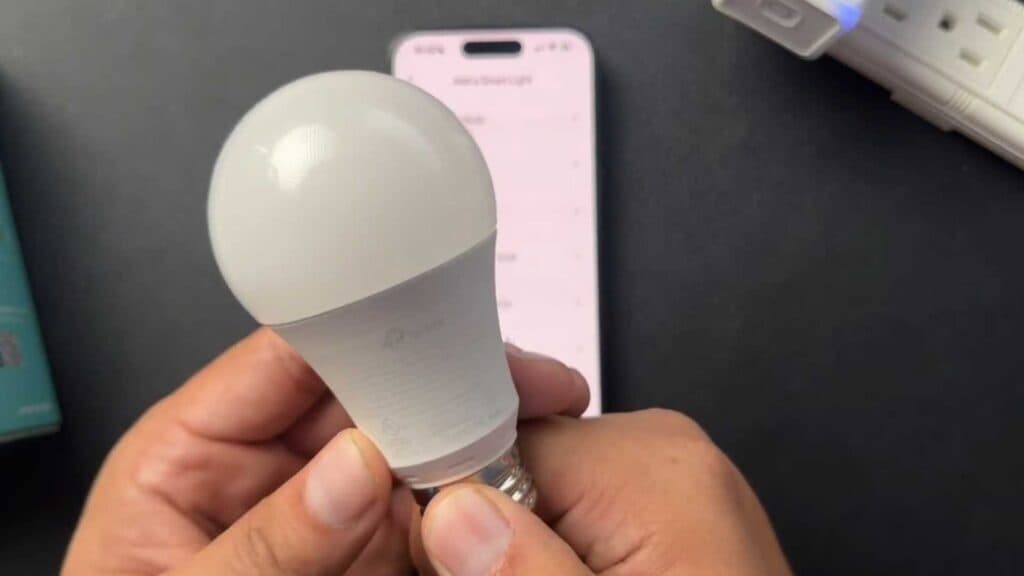
Your new TP-Link Kasa smart device is currently not showing up in your mobile app. You can get it connected to your Wi-Fi network by following these simple steps.
- Locate the model number on your device, such as the HS105, which you will need to identify the correct setup guide in the app [0:20].
- Open the Kasa app on your phone and tap the plus (+) icon in the upper right-hand corner to add a new device [0:38].
- Select your device type from the list and find the specific model number that matches your hardware [0:46].
- Follow the on-screen animations to connect the device to your home Wi-Fi network [1:06].
- Assign a custom name and a location to your device so you can easily identify it in the app [1:37].
- If you are setting up a smart switch or light bulb, ensure it is installed and powered on before selecting it in the app menu.
Ninja Tip: If your device fails to connect, ensure your phone is connected to a 2.4GHz Wi-Fi network, as most Kasa smart devices are incompatible with 5GHz bands during the initial setup process.
If the device still fails to pair, perform a factory reset by holding the power button or reset switch on the device itself according to the manufacturer’s manual.
Keep Reading


