How to Connect Bluetooth Headphones to Google TV or Chromecast

By Trae Jacobs,

When you buy through our links, we may earn an affiliate commission.
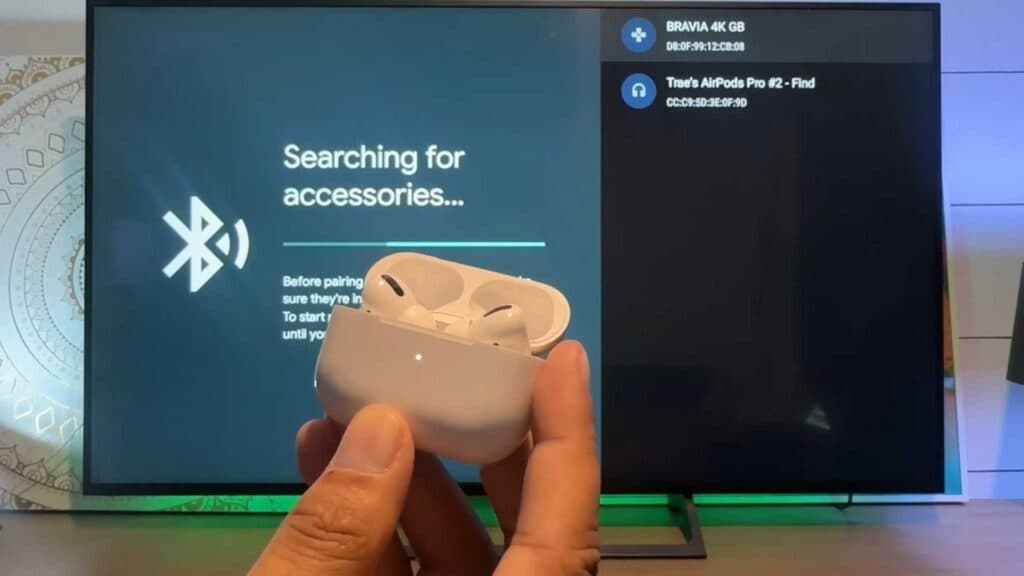
Your Bluetooth headphones are not playing audio from your Google TV or Chromecast. You can connect them by following these steps.
- Use your remote to navigate to the Settings menu, found in the upper right corner of the screen [0:16].
- Select the Bluetooth option from the list [0:24].
- Set your headphones to pairing mode by holding down the button until the indicator light blinks [0:34].
- Select Pair remote or accessories on your TV screen [0:41].
- Once your device appears on the screen, select it to pair and connect your headphones.
Ninja Tip: If you notice audio lag while watching, go to Settings > Display & Sound > Advanced sound settings > Match content frame rate and turn it on, as this can sometimes help sync the audio track with the video stream.
If the connection fails entirely, try a factory reset by navigating to Settings > System > About > Factory reset.
Keep Reading



