how to Connect Apple AirPods to an LG Smart TV

By Trae Jacobs,

When you buy through our links, we may earn an affiliate commission.
Your AirPods do not currently play audio from your LG Smart TV. You can link them through the Bluetooth settings menu to enjoy your media privately.
- Press the gear icon on your remote and navigate down to All Settings [0:08].
- Select Sound, then Sound Out, and choose Use External Speakers [0:20].
- Pick Bluetooth + TV from the list, ensure Connect one speaker is selected, and hit Next [0:26].
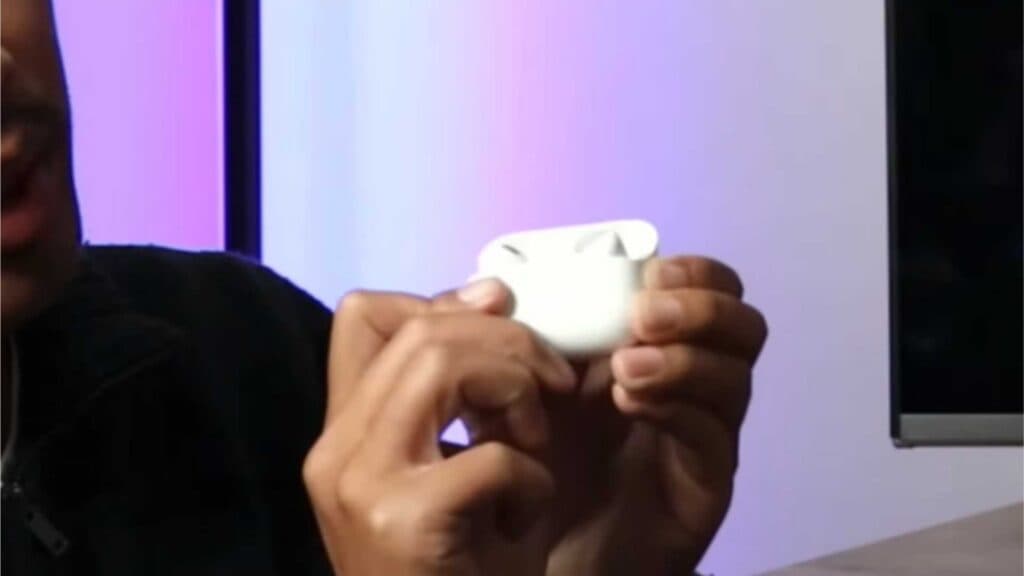
- Open your AirPods case and hold the small button on the back until you see a flashing white light [0:48].
- Select your AirPods from the list on the TV screen [1:03].
- Confirm your AirPods show a green checkmark on the screen and hit Done to finish the setup.
Ninja Tip: If you experience lip-sync issues or audio lag after pairing, check your LG TV’s sound settings for an AV Sync Adjustment option to fine-tune the timing.
If the Bluetooth connection fails, you can perform a reset by going to Settings > All Settings > Support > Reset to Initial Settings.
Keep Reading

