How to Connect and Arrange Dual Monitors on Your Mac

By Trae Jacobs,

When you buy through our links, we may earn an affiliate commission.
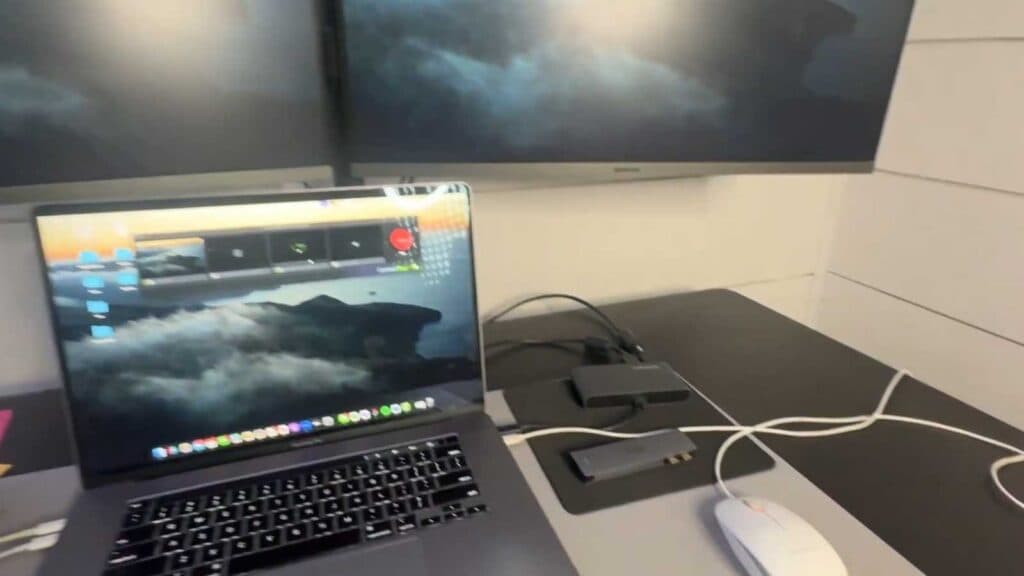
Your Mac is currently displaying the same image on both screens or is incorrectly ordered in your workspace. You can fix this by configuring your display settings to extend your desktop across both monitors.
- Verify that your Mac hardware has two video outputs, then connect your monitors to the Mac using a compatible docking station or adapter [0:52].
- Open your System Settings and navigate to the Displays menu [1:39].
- Click the Arrangement button to view the layout of your connected screens [1:50].
- Drag the blue boxes representing your displays to match their actual physical position on your desk [2:24].
- Drag the white bar at the top of the display diagrams to choose which screen serves as your primary monitor.
Ninja Tip: If your Mac fails to recognize a monitor after you plug it in, hold down the “Option” key while inside the Displays menu to make a “Detect Displays” button appear, then click it to refresh the connection.
If you continue to experience display issues, try resetting your display configuration by navigating to System Settings > Displays > Advanced and checking your resolution and refresh rate settings.
Keep Reading


