How to Connect AirPods or Bluetooth Headphones to an LG TV

By Trae Jacobs,

When you buy through our links, we may earn an affiliate commission.
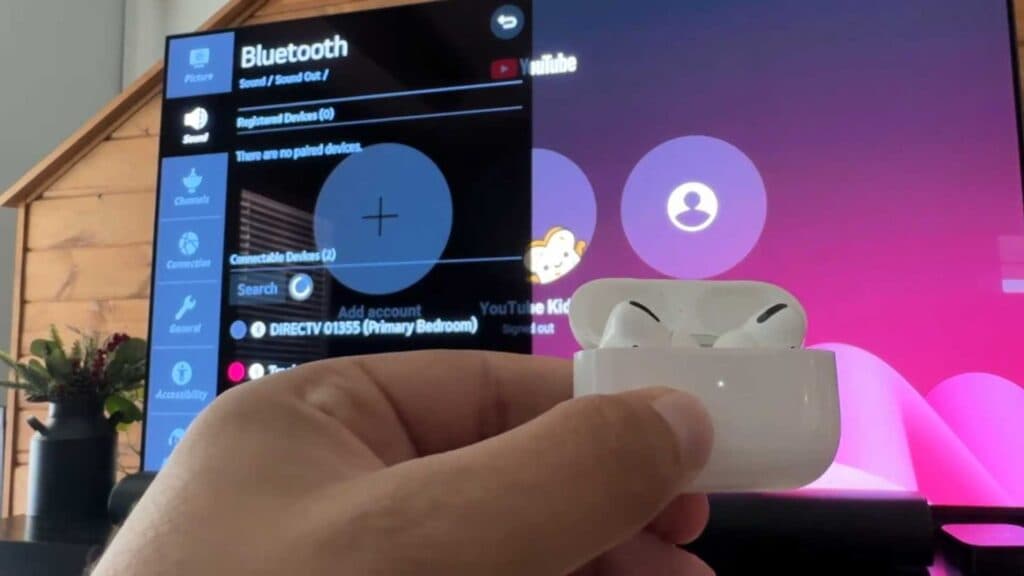
Your Bluetooth headphones are not playing sound from your LG TV. You can fix this by pairing your device directly through the TV’s sound settings.
- Open the settings menu by selecting the settings icon on your screen or pressing the settings wheel button on your remote [0:44].
- Navigate to “All Settings,” select “Sound,” and then open the “Sound Out” menu [0:58].
- Select “Bluetooth” and click on the device list to begin searching for your headphones [1:07].
- Put your AirPods or headphones into pairing mode by holding the pairing button until the indicator light blinks [1:21].
- Select your headphones from the list on the TV screen once they appear [1:41].
- If the audio keeps cutting out or switching back to a soundbar, unplug the soundbar’s HDMI cable from the back of the TV to remove the interference.
Ninja Tip: If you notice your audio is slightly behind the video after connecting, look for the “AV Sync Adjustment” setting under the sound menu to manually align the audio with the picture.
To perform a full system reset, navigate to Settings > Support > Reset to Initial Settings.
Keep Reading


