How to Clear the YouTube App Cache on Your Smart TV

By Trae Jacobs,

When you buy through our links, we may earn an affiliate commission.
Your YouTube app is buffering or failing to load content properly on your smart TV. You can resolve these playback issues by clearing the app cache.
- For Android TV or Google TV devices, go to your Settings menu and select Apps. Find YouTube in your list of apps, select it, and choose the option to clear the cache [0:26].
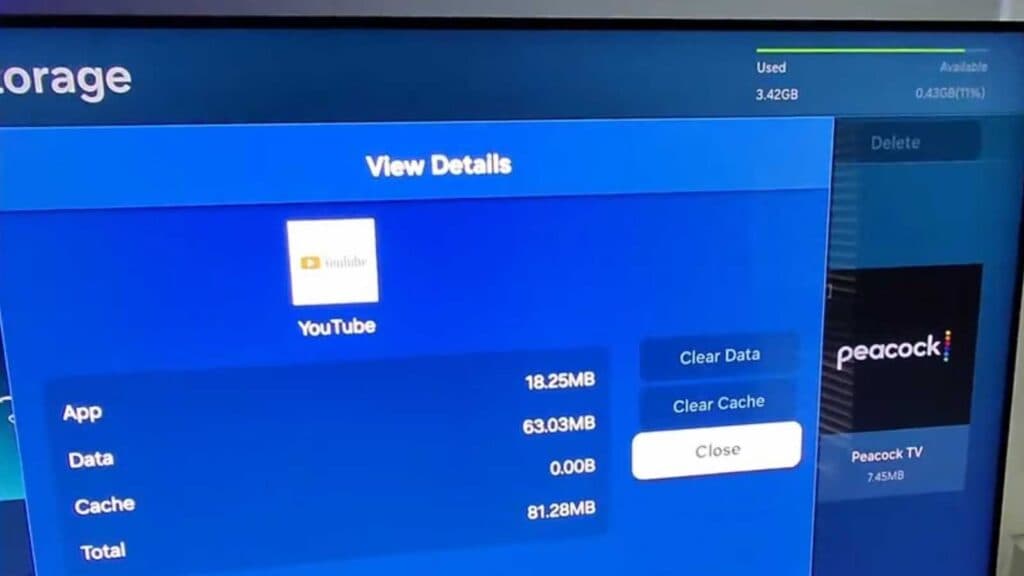
- For newer Samsung TVs, navigate to Support and select Device Care. From there, go to Manage Storage, select YouTube, and choose View Details to clear the cache [1:02].
- If clearing the cache does not resolve the issue, unplug your TV from the wall power outlet for at least 60 seconds to allow the system to fully power cycle.
Ninja Tip: Check your TV’s date and time settings to ensure they are set to “Automatic” or “Network-provided,” as an incorrect clock often prevents secure apps like YouTube from connecting to the server.
If the problem persists, perform a factory reset by navigating to Settings > General > Reset.
Keep Reading