How to Clear or Pause Your YouTube Search History

By Trae Jacobs,

When you buy through our links, we may earn an affiliate commission.
Your YouTube account keeps a running record of everything you search for while signed in. You can clear this history or disable it entirely to stop the platform from tracking your future searches.
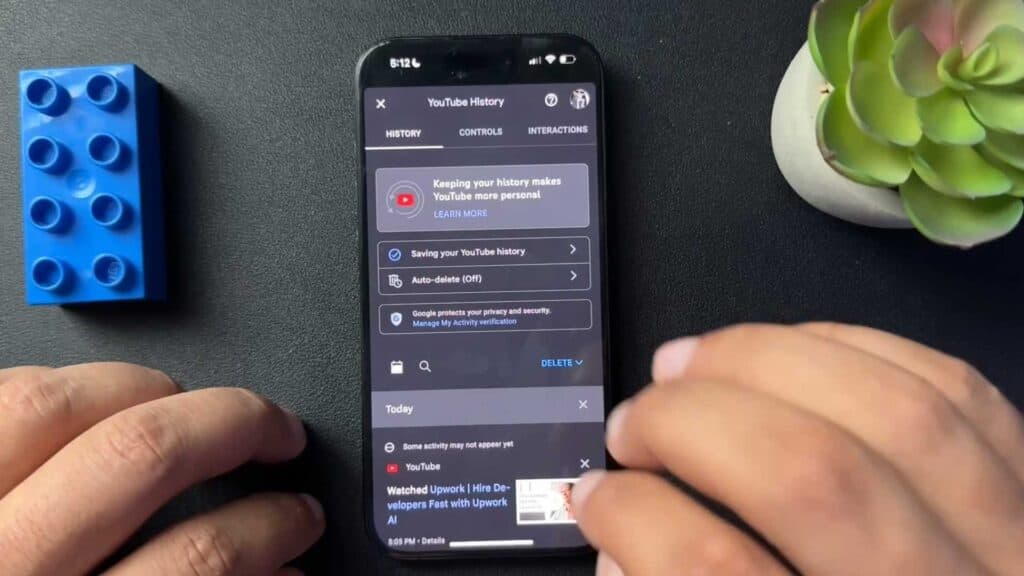
- On the YouTube mobile app, tap the You tab at the bottom, select the settings gear icon at the top, and tap Manage all history [0:32].
- Use the Delete menu to remove your search history from today, a custom range, or all time [1:07].
- Select Auto-delete to have YouTube automatically clear your history after 3, 18, or 36 months [1:15].
- To stop YouTube from recording your searches, go to the Controls tab and turn off search history [1:38].
- If you are on a desktop browser, click your profile icon and select Your data in YouTube [2:43].
- Toggle the Include your YouTube searches switch to off if you want to stop the platform from logging your activity.
Ninja Tip: You can also use “Incognito Mode” by tapping your profile icon in the mobile app, which prevents YouTube from saving your watch and search history during that session without having to change your global account settings.
If you want a completely fresh start, you can delete your entire account activity by navigating to Google My Activity > Delete activity by > All time.
Keep Reading