How to Clear Cache on Google TV to Improve Performance

By Trae Jacobs,

When you buy through our links, we may earn an affiliate commission.
Your Google TV apps are lagging and the system is running slow because of full storage. You can fix these performance issues by clearing your cache.
- Go to Settings, select All settings, choose Apps, and then select See all apps [0:40].
- Pick the app that is giving you trouble and select Clear cache [0:54].
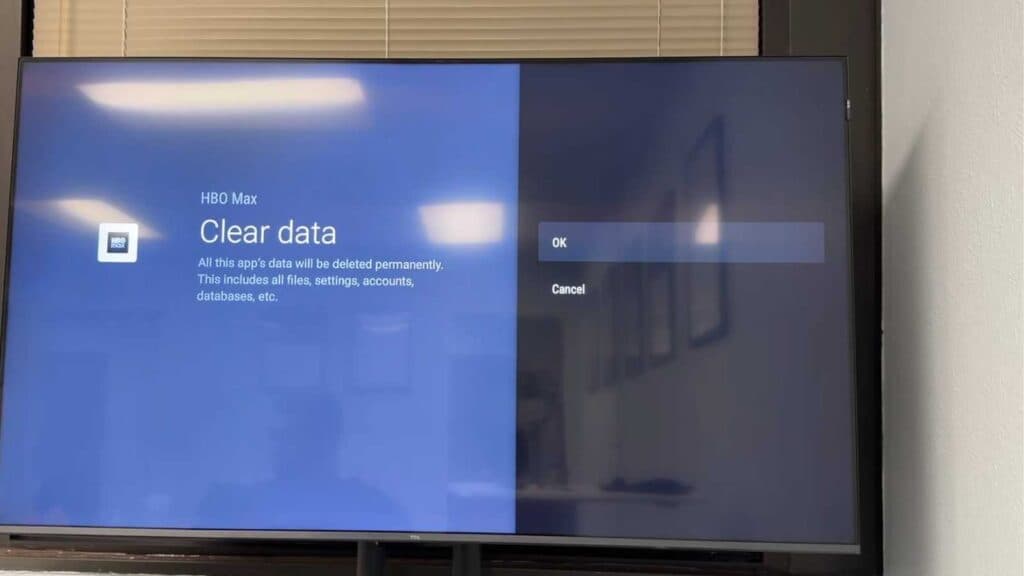
- If you want to wipe an app’s settings and login info, select Clear data instead, but keep in mind this resets the app completely [1:26].
- Remove unused applications by selecting Uninstall from the app menu to reclaim space [2:07].
- Plug a USB drive into your TV’s port to expand your available storage capacity [2:20].
- Navigate to Settings, select System, click Storage, and choose Cached data to clear temporary files for every app at once.
Ninja Tip: Restart your TV by unplugging it from the wall for 30 seconds to force a complete system refresh, which often clears out temporary memory leaks that standard cache cleaning misses.
For a clean slate, you can perform a factory reset by navigating to Settings > System > About > Reset > Factory reset.
Keep Reading



