How to Clear Cache and Cookies on iPhone (Safari and Chrome)

By Trae Jacobs,

When you buy through our links, we may earn an affiliate commission.
Your iPhone browser is running slow and websites are failing to load properly. You can fix this by clearing your temporary browsing data.
- Open your Settings app and scroll down until you reach the Apps section [0:18].
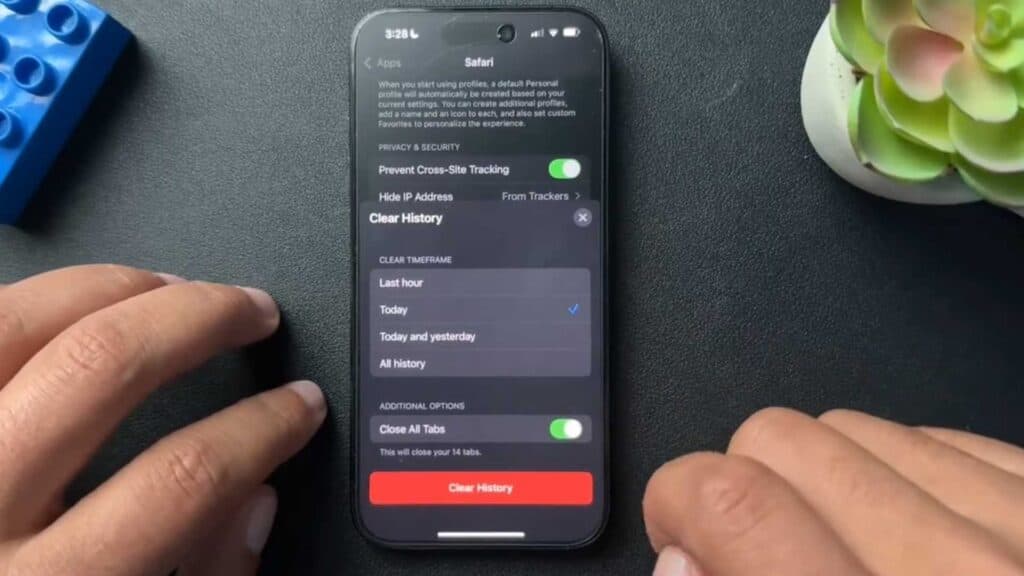
- Locate and tap on Safari, then select Clear History and Website Data [0:28].
- Choose your preferred timeframe for clearing data and toggle the Close All Tabs option if you want a fresh start, then confirm by tapping Clear History [0:42].
- To clear data in Chrome, open the app and tap your profile icon in the top right corner [1:31].
- Go to Privacy and Security and select Delete Browsing Data [1:40].
- Pick a time range and specify exactly what data to delete before hitting the Delete Browsing Data button.
Ninja Tip: If you frequently experience slow loading speeds, try enabling Content Blockers in your Safari settings to prevent heavy ad scripts from running in the background.
If these steps do not improve performance, you can perform a full reset by navigating to Settings > General > Transfer or Reset iPhone > Erase All Content and Settings.
Keep Reading



