How to Check Your AirPods Battery Life

By Trae Jacobs,

When you buy through our links, we may earn an affiliate commission.
Your AirPods currently have no visible battery percentage on your device screen. You can check the exact battery status using these five simple methods.
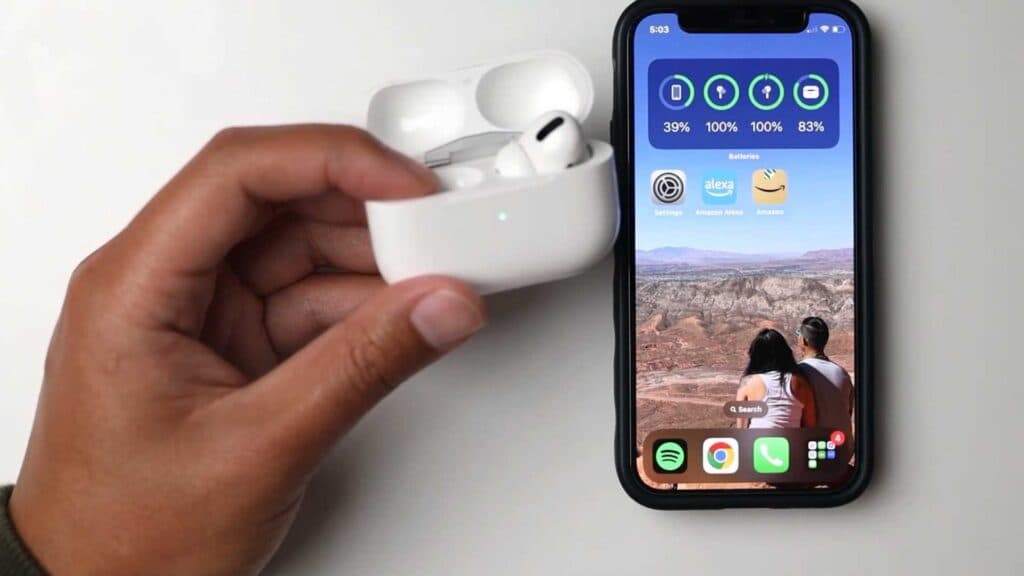
- Bring your AirPods case close to your unlocked iPhone and open the lid to see the pop-up indicator [0:07].
- Long-press an empty area on your home screen, tap the plus sign, and select the Batteries widget to pin it to your view [0:20].
- Activate your digital assistant by saying “Hey Siri, what’s the battery life of my AirPods?” [0:56].
- Open the Bluetooth settings menu on your MacBook or iPad and hover your cursor over the AirPods device name [1:10].
- Check the status light on the front of your charging case, where green means a full charge and amber or red indicates low power.
Ninja Tip: You can also enable the Batteries widget in your Today View by swiping right from your lock screen, which lets you see your levels without even unlocking your phone.
If the battery status still does not appear, perform a factory reset by navigating to Settings > Bluetooth > AirPods > Forget This Device and re-pairing them to your device.
Keep Reading


