How to Check for and Install Updates on Your LG TV

By Sameer,

When you buy through our links, we may earn an affiliate commission.
Your LG TV runs on outdated software, and you need to get it updated to the latest version. You can resolve this by following the steps below to find and install the newest firmware.
- Press the Settings wheel icon on your remote to open the main settings menu. [0:26]
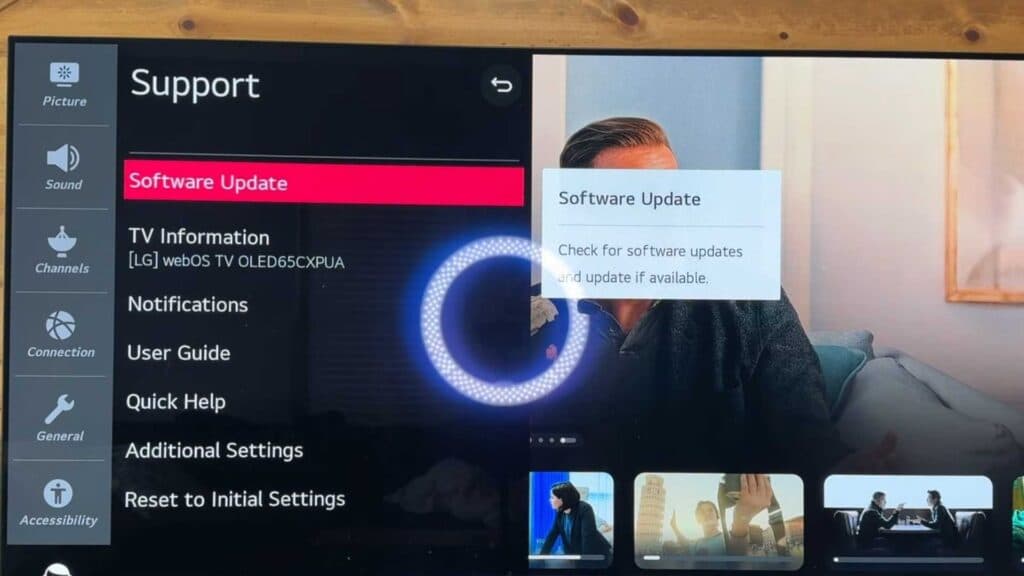
- Navigate to the “All Settings” menu and select “Support.” [0:38]
- Select “Software Update” from the list of options. [0:58]
- Click “Check for Updates” and proceed with the installation if a new version is available.
Ninja Tip: If you are having trouble with a specific app, try clearing the cache in the TV’s browser or checking for updates specifically within the LG Content Store.
If the software remains stuck or the TV is acting up, you can perform a factory reset via Settings > Support > Reset to Initial Settings.
Keep Reading


