How to Change Your YouTube Profile Picture

By Trae Jacobs,

When you buy through our links, we may earn an affiliate commission.
Your current YouTube profile picture no longer reflects your channel or personal brand. You can update it by following these steps.
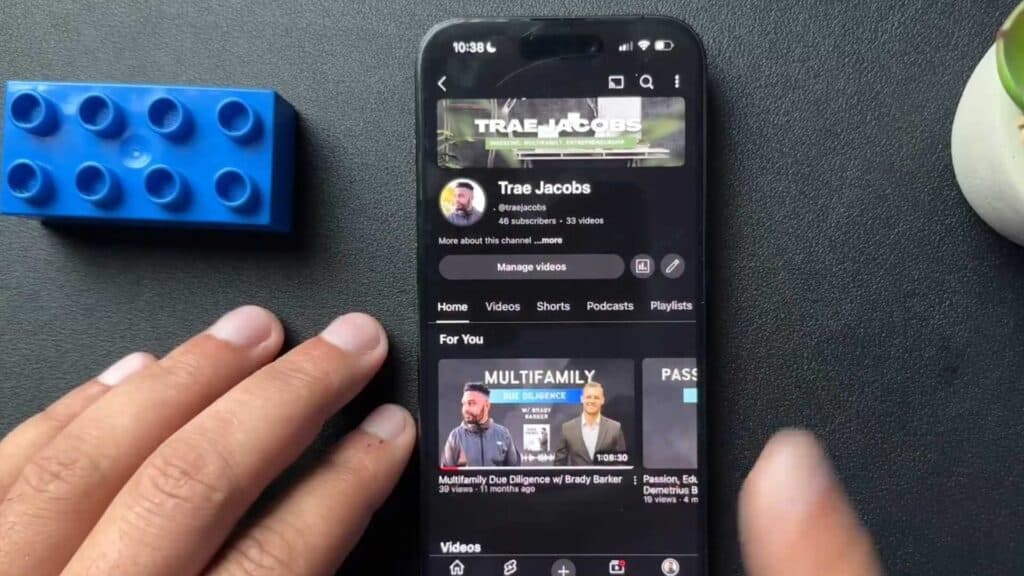
- Open the YouTube app and tap the “You” tab in the bottom navigation menu [0:20].
- Tap your profile picture at the top of the screen to view your channel information [0:28].
- Select the edit button located next to the manage videos option [0:33].
- Tap your profile picture again to open the camera and gallery options, then choose a new image to upload.
Ninja Tip: Remember that changing your YouTube profile picture also updates the icon associated with your linked Google account, meaning it will change across other services like Gmail and Google Drive as well.
If you are unable to save your changes, check your account permissions under Settings > Google Account > Personal Info.
Keep Reading


