How to Change Your YouTube Channel Name

By Trae Jacobs,

When you buy through our links, we may earn an affiliate commission.
Your current YouTube channel name no longer represents your content. You can update it easily by following a few simple steps on your computer or phone.
- To change your name on a desktop, open your YouTube Studio dashboard and click on the “Customization” tab. [0:57]
- Scroll down to your channel name, enter your new choice, and click “Publish” to save your changes. [1:01]
- If you want to update your channel handle to match your new name, you can edit it in the same customization menu. [1:15]
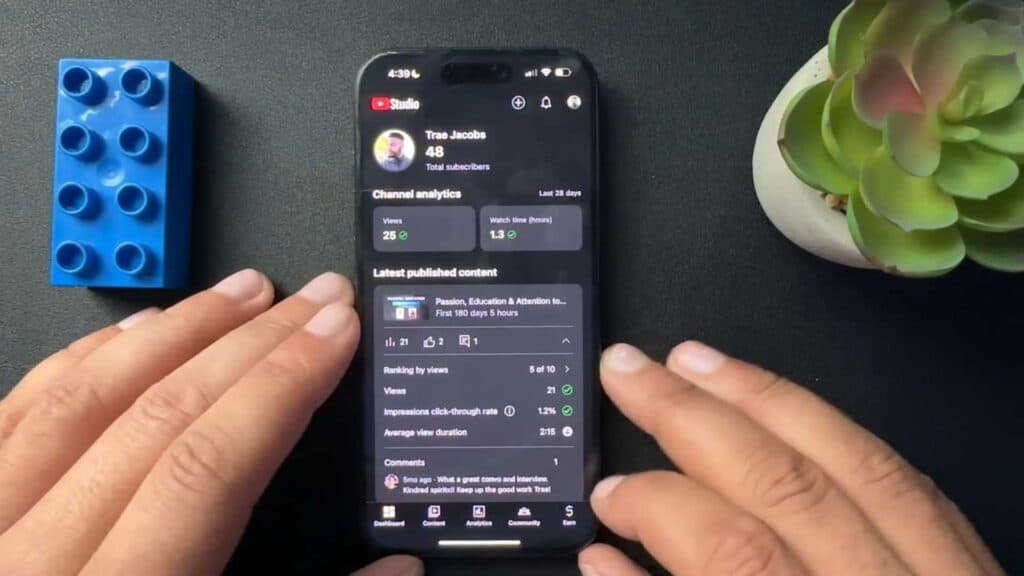
- To change your name on the mobile app, tap your profile icon in the top right corner and select the “Edit” button. [1:42]
- Update your name or handle directly in the provided fields.
Ninja Tip: Keep in mind that changing your name can impact how subscribers search for you, so consider announcing the change in a community post or video description beforehand. Also, ensure your new name doesn’t violate any trademark policies to avoid potential account issues.
If you need to revert to a previous name and have exhausted your two-change limit, you must wait 14 days before the system allows further edits in your channel settings.
Keep Reading