How to Change Your Primary PayPal Email Address

By Trae Jacobs,

When you buy through our links, we may earn an affiliate commission.
You need to update the primary email address on your PayPal account. You can easily manage this update through your account settings.
- Log into your personal PayPal account and scroll down to the Account Info section [0:08].
- Locate the Emails section at the very top and select See all [0:13].
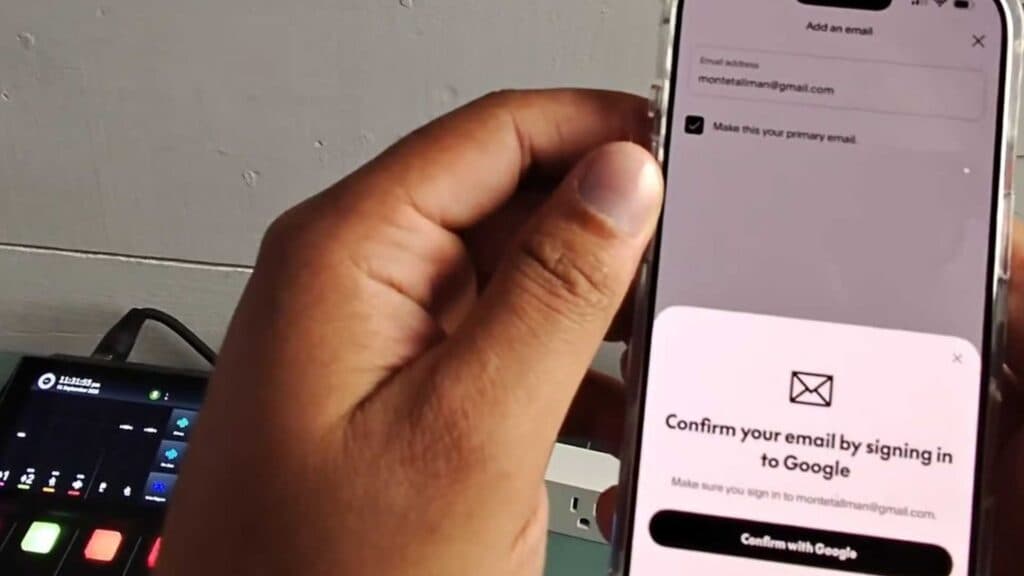
- Choose the option to add a new email, enter the address you want to use, and verify it [0:18]. Note that you cannot use an email address that is already registered to a different PayPal account [0:30].
- Confirm the new email address using the verification code sent to you [0:55].
- Once the new address is verified, set it as your primary email and remove the old address from your account.
Ninja Tip: Remember to update your email address on file with any merchants or subscription services that use PayPal for automated billing to avoid missing payment notifications.
If you are still unable to manage your email settings, you can reach out to PayPal support via Help > Contact.
Keep Reading



