How to Change Your Phone Number on PayPal

By Trae Jacobs,

When you buy through our links, we may earn an affiliate commission.
Your current phone number linked to your PayPal account is incorrect or outdated. You can update this information directly through your account settings.
- Log into your PayPal account and click the account button in the upper right corner to select account info [0:07].
- Locate the phone numbers section and click “see all” to view your current details [0:13].
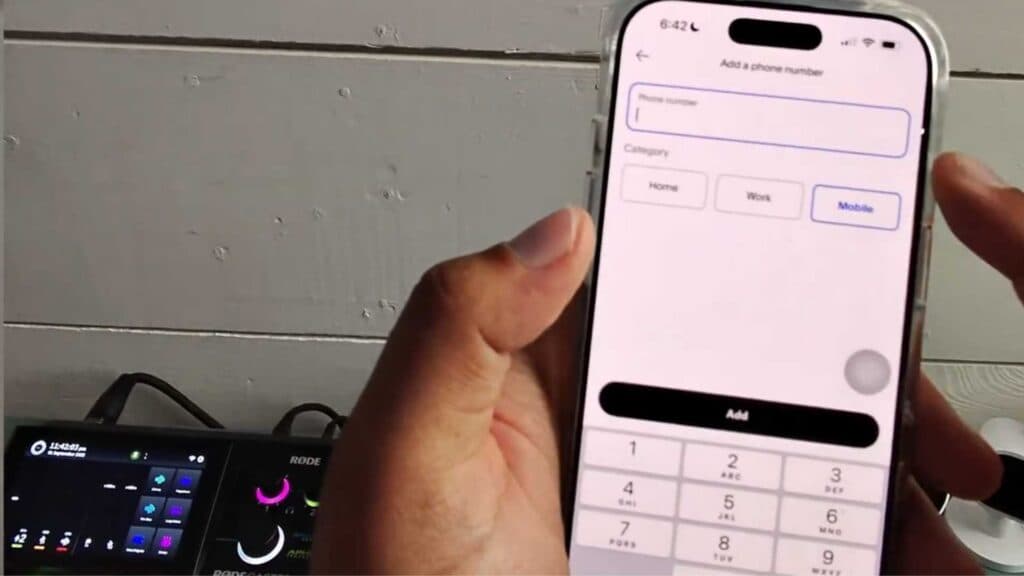
- Add your new phone number and select the appropriate category for it [0:31].
- Follow the prompt to verify your new number via the text message PayPal sends you [0:35].
- Once verified, your new number automatically becomes your primary number, allowing you to select and remove your old secondary number.
Ninja Tip: Remember to update your two-factor authentication settings immediately after changing your number to ensure you don’t lose access to your account during login attempts.
If you are still unable to manage your contact details, you can reach out to customer support via Settings > Help > Contact Support.
Keep Reading



