How to Change Your Mac Wallpaper

By Trae Jacobs,

When you buy through our links, we may earn an affiliate commission.
You want to change your Mac’s background but the system settings don’t look familiar. You can update your desktop image or add a custom photo in just a few minutes.
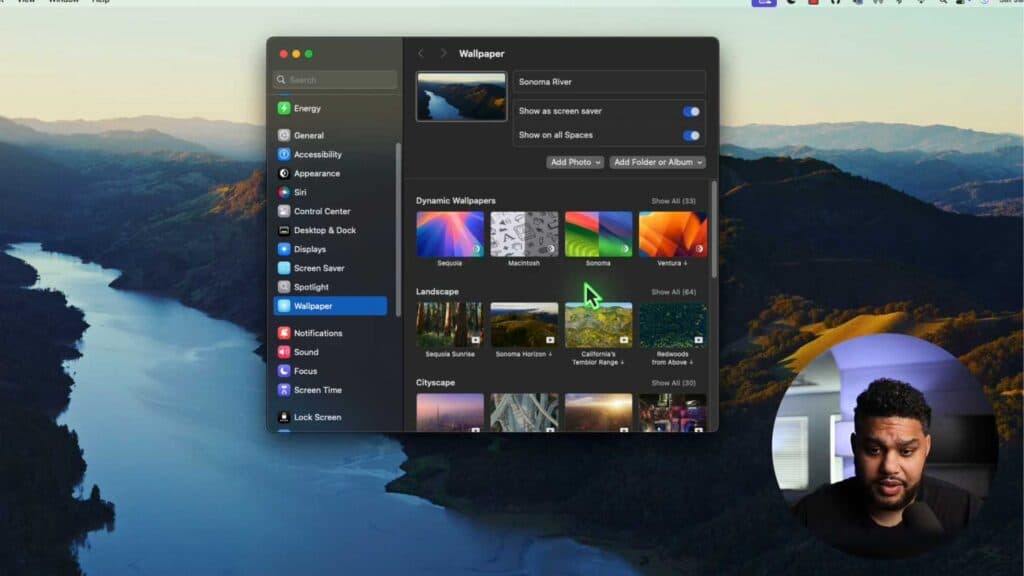
- Open the Apple menu in the top left corner of your screen and select System Settings [0:20]. Alternatively, you can right-click anywhere on your desktop and select Change Wallpaper to go straight to that menu [0:26].
- Browse the available Dynamic and animated wallpapers provided by macOS, or click on a specific image to download and apply it [0:43].
- To use a custom image, click Add Photo to select a file from your computer or choose a download from a source like Pexels or Unsplash [1:19].
- If you are using multiple monitors, select the specific screen from the top of the window to customize its wallpaper independently [3:17].
Ninja Tip: You can set your wallpaper to rotate automatically by using the “Shuffle” feature found at the top of the Wallpaper settings menu, which allows you to cycle through a folder of your own photos.
If you encounter persistent issues with your desktop display, you can try resetting your system preferences by navigating to System Settings > General > Transfer or Reset > Erase All Content and Settings.
Keep Reading



