How to Change Your iPhone Ringtone

By Trae Jacobs,

When you buy through our links, we may earn an affiliate commission.
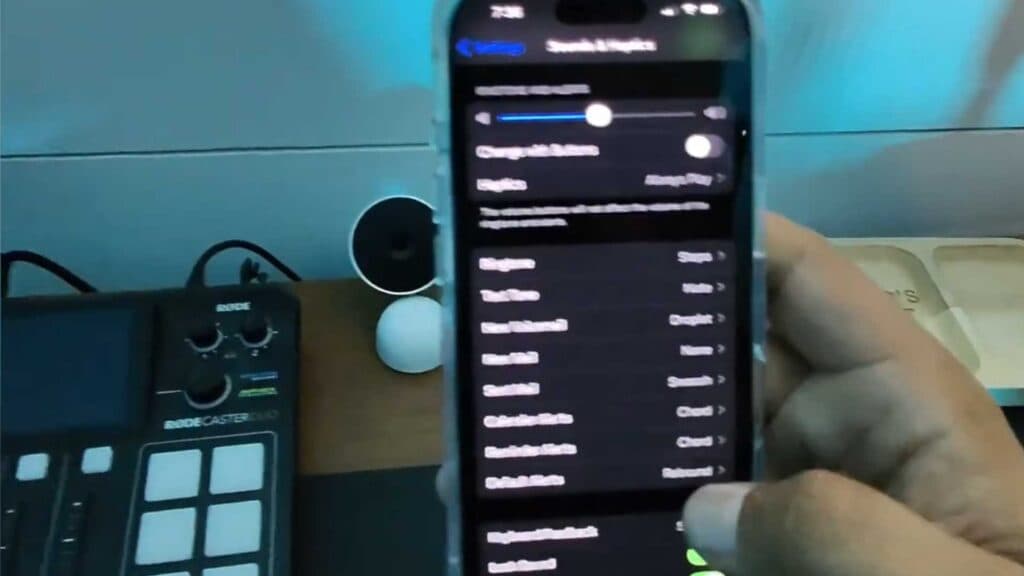
You need to set a new ringtone on your iPhone. You can change it quickly through your device settings.
- Open the Settings app on your iPhone [0:11].
- Scroll down and tap Sounds & Haptics [0:17].
- Tap on Ringtone to view your current list of options [0:23].
- Select a new sound from the system list, browse the Tone Store, or scroll to the bottom to choose a Classic ringtone [0:37].
- Once you select your preferred sound, just hit the back button; your choice saves automatically.
Ninja Tip: If you want a specific song as your ringtone, you can create a custom tone using the GarageBand app to trim your music files and export them directly to your ringtone settings.
If you still encounter sound issues, you can perform a reset by going to Settings > General > Transfer or Reset iPhone > Reset > Reset All Settings.
Keep Reading



