How to Change Your iPhone Name

By Trae Jacobs,

When you buy through our links, we may earn an affiliate commission.
Your iPhone shows up with a generic name whenever you connect to other devices. You can quickly rename it to something more personal in your settings.
- Open the Settings app and tap on the General section [0:27].
- Select the About menu at the top of your screen [0:37].
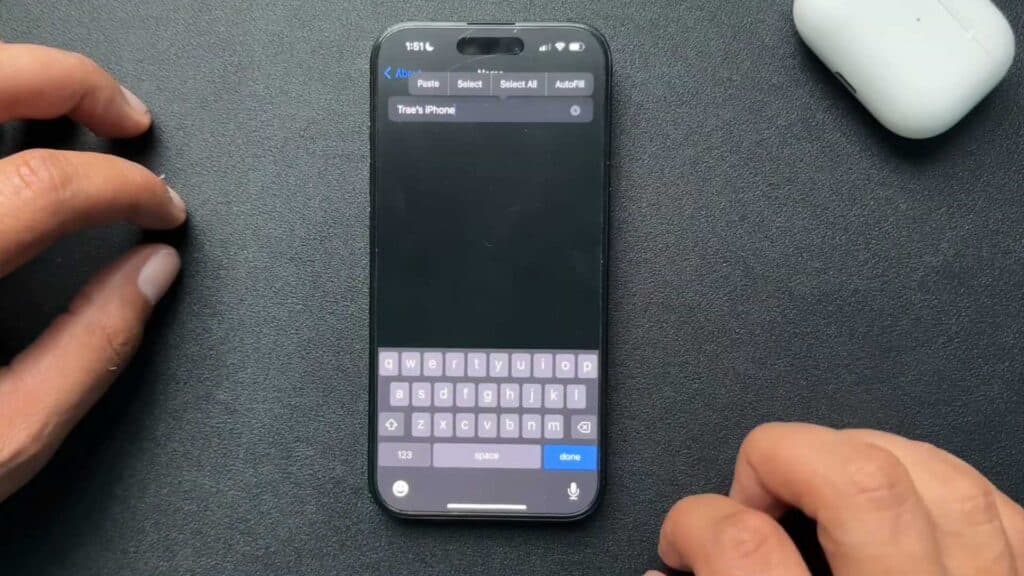
- Tap on the Name field, delete the current text, and type in your preferred name [0:43].
- Tap Done on your keyboard to save the new name for your device.
Ninja Tip: Remember that changing your device name also updates how it appears on your home network and in AirDrop menus for nearby users.
If you need to completely erase your data, go to Settings > General > Transfer or Reset iPhone > Erase All Content and Settings.
Keep Reading



