How to Change Your iPhone Auto-Lock Timing

By Trae Jacobs,

When you buy through our links, we may earn an affiliate commission.
Your iPhone screen turns off while you are watching videos or reading content. You can easily adjust this setting to keep your display active for longer.
- Open the Settings app on your iPhone [0:17].
- Scroll down and tap on Display & Brightness [0:22].
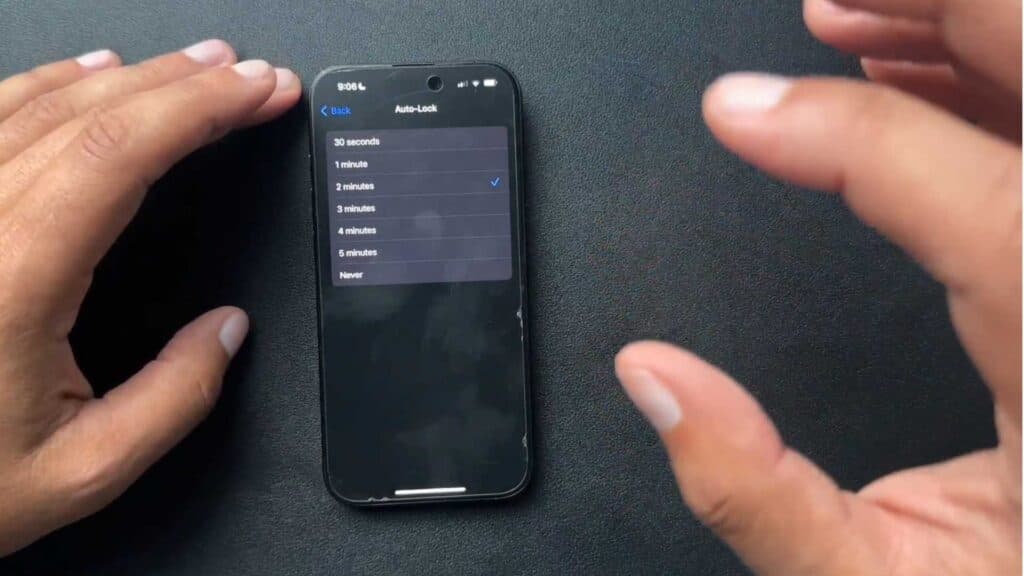
- Select Auto-Lock to view your current timing options [0:28].
- Choose a new duration from the list to increase how long your screen stays on before it dims.
Ninja Tip: Enable Attention Aware Features in Settings > Face ID & Passcode so your iPhone checks for your gaze before dimming the display, preventing it from locking while you are looking at the screen.
If you encounter persistent display issues, you can perform a full reset via Settings > General > Transfer or Reset iPhone > Reset > Reset All Settings.
Keep Reading



