How to Change Your Instagram Username and Display Name

By Trae Jacobs,

When you buy through our links, we may earn an affiliate commission.
Your Instagram profile currently displays a username or name that you want to change. You can update both of these details directly through the app settings.
- Open the Instagram app and tap your profile icon in the bottom right corner [0:22].
- Tap the three horizontal lines in the top right corner to open your menu [0:26].
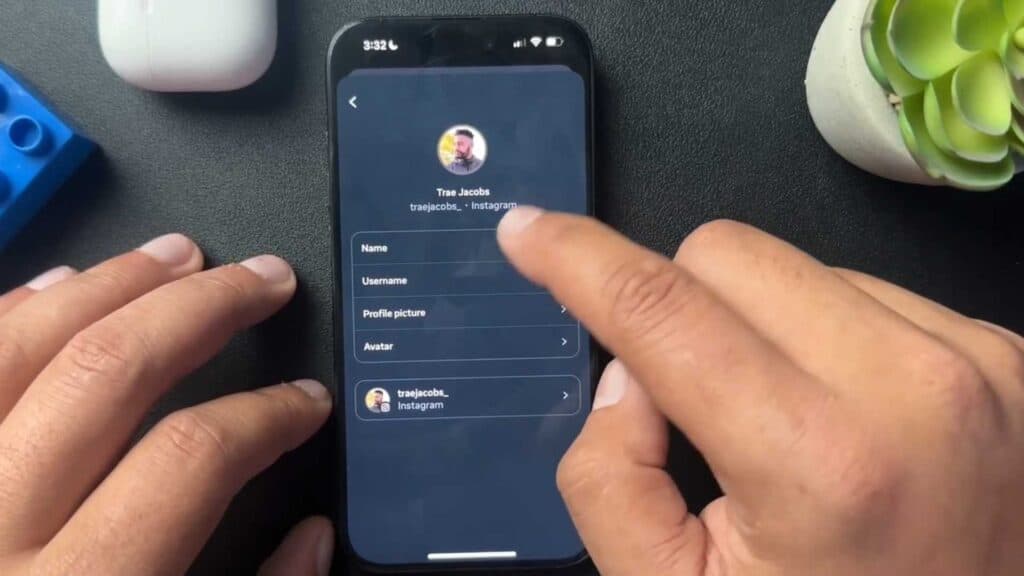
- Select “Account Center” and then tap on “Profiles” to choose the account you need to edit [0:30].
- Tap on “Name” to update your display name or select “Username” to change your @handle [0:43].
- Enter your new information, ensure the username is available, and save your changes.
Ninja Tip: Remember that changing your username updates your profile’s unique web address, so notify your followers if you share your link frequently. Also, if your desired username is taken, try adding a period or an underscore to keep the handle as close to your brand as possible.
If you are still unable to edit your profile information, check for an app update under Settings > Help > App Updates.
Keep Reading



