How to Change Your Instagram Profile Picture

By Trae Jacobs,

When you buy through our links, we may earn an affiliate commission.
Your Instagram profile picture is outdated and you want to update it to something new. Follow these steps to change it quickly through the app settings.
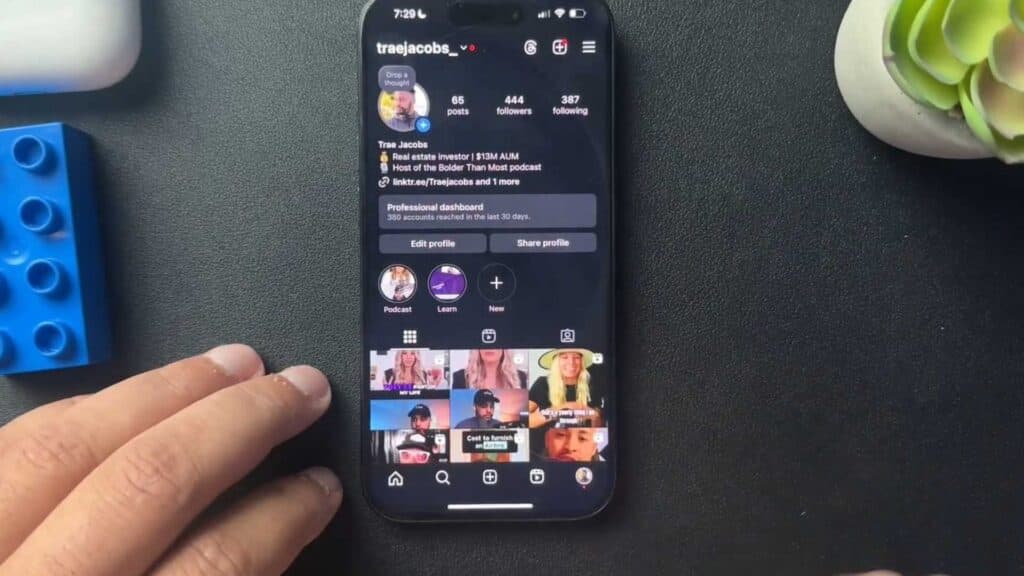
- Open the Instagram app and tap the profile icon in the bottom-right corner of your screen. [0:23]
- Tap the three-line menu icon in the top-right corner to open your settings. [0:30]
- Select “Account Center,” then tap “Profiles” at the top of the list. [0:36]
- Choose the specific Instagram account you want to edit. [0:43]
- Tap “Profile Picture” to access your device’s photo gallery, choose your new image, make any necessary adjustments, and hit save.
Ninja Tip: You can also change your profile picture directly by tapping your current avatar on your profile page and selecting “Edit picture” to bypass the Account Center menus entirely.
If you are still unable to update your image, check for app updates in the App Store or Google Play Store, or try clearing your app cache via Settings > Apps > Instagram > Storage > Clear Cache.
Keep Reading



