How to Change Your Instagram Password

By Trae Jacobs,

When you buy through our links, we may earn an affiliate commission.
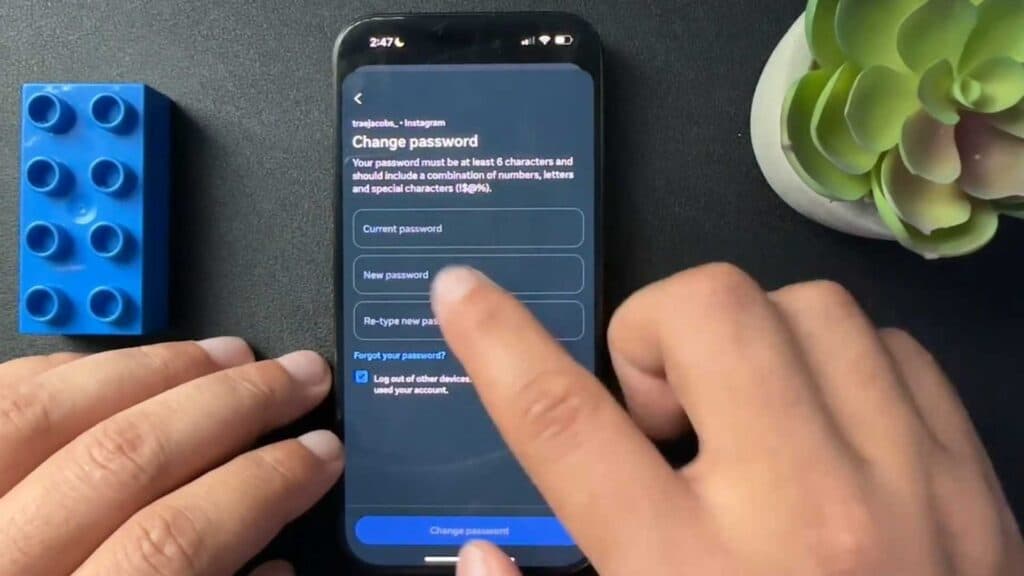
You need to update your Instagram password to keep your account secure. You can complete this change through your account settings in just a few minutes.
- Open your profile page by tapping your profile picture in the bottom right corner of the Instagram app [0:16].
- Tap the three horizontal lines at the top of the screen to open the menu and select Account Center [0:21].
- Navigate to Account settings and open the Password and security section [0:38].
- Select the Change password option and choose the specific account you want to update [0:43].
- Follow the prompts to enter your new password, and check your email afterward to verify the change if prompted.
Ninja Tip: Enable Two-Factor Authentication (2FA) in the same “Password and Security” menu to add an extra layer of protection beyond just a password. This ensures that even if someone figures out your password, they still cannot access your account without your secondary code.
If you have forgotten your current password and cannot log in to reach these settings, select the “Forgot password?” link on the login screen to receive a reset link via email or SMS.
Keep Reading



